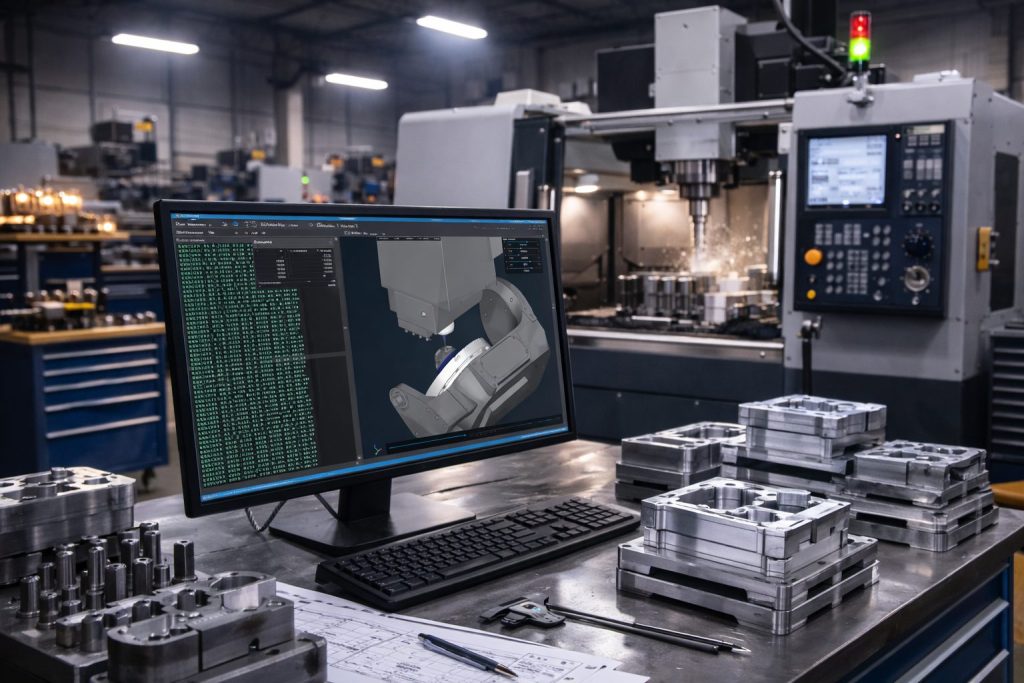
 For CNC shops, a mistake discovered on the machine is a mistake which has already cost you something – whether that’s a scrapped part, a damaged tool, a broken fixture, or worse.
CIMCO Machine Simulation is designed to move that discovery to your PC, before any material is touched or any machine is at risk.
This post provides an overview of what CIMCO Machine Simulation is, what it does, and why it’s worth considering for your shop.
What is CIMCO Machine Simulation?
CIMCO Machine Simulation is an add-on for CIMCO Edit, which lets you prove out your NC programs on a 3D model of your actual CNC machine – heads, spindles, fixtures, peripheral devices and all. Rather than running a dry cycle or a first-cut test on the physical machine, you simulate the entire program on your PC first. Powered by the world’s fastest GPU-accelerated stock simulation kernel.
It goes well beyond basic backplot. Where backplot shows you toolpath, Machine Simulation shows you the machine itself moving through every axis of travel, interacting with your workpiece and fixturing, in a fully three-dimensional environment.
Why it Matters on the Shop Floor
The case for simulation comes down to a few things that every shop manager and programmer already thinks about:
1. Safety. Running an unproven program on a machine is a risk to both equipment and people. Simulating first means collisions, crashes, and out-of-limit moves are caught on a PC screen rather than in the machine enclosure.
2. Faster Job Startup. First-article runs and setup time eat into your capacity. When a program has been fully proven out in simulation, you can run it with confidence the first time, reducing scrap from initial test cuts and shrinking the time from job receipt to first good part.
3. Faster Changes. Need to try a different approach or tweak an offset? Do it in simulation. You’re not tying up a machine, burning cycle time, or putting wear on tooling while you experiment. Modify the code, re-simulate, and verify the fix before sending anything to the floor.
4. Shifting Jobs Between Machines. When production demands require moving a job to a different machine, the geometry, travel limits, and setup can all change. Machine Simulation lets you load the target machine configuration, re-verify the program, and confirm there are no issues before you cut a single chip on the new machine.
5. Digital Training. New programmers and operators can use Machine Simulation to learn NC code behavior and machine movement without occupying a physical machine. It’s a low-risk environment for building skills.
Key Features
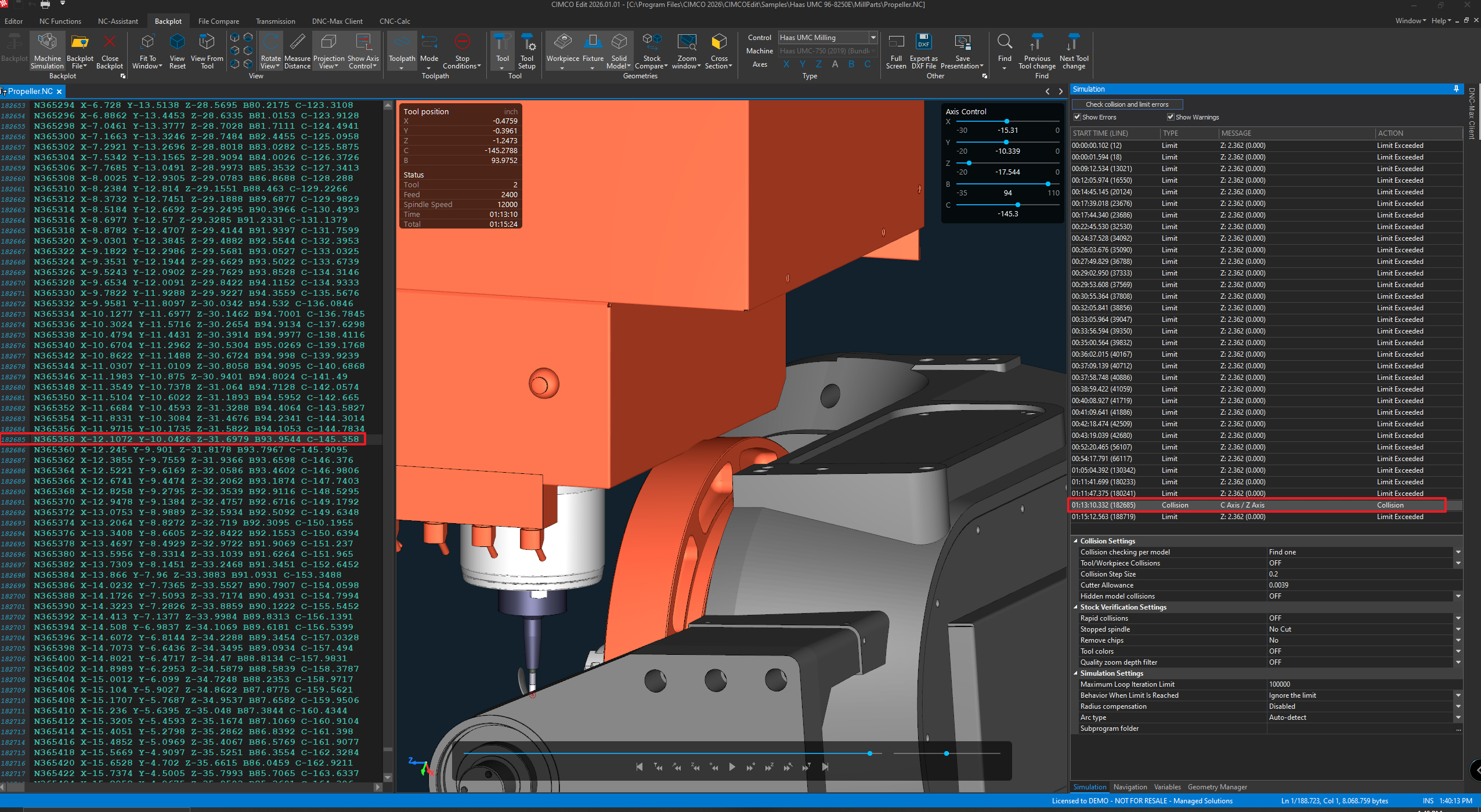
Collision Detection and the Simulation Report. As the simulation runs, any collision between machine components, tooling, fixtures, or the workpiece is flagged automatically. Components which collide will highlight in red in the 3D view. Every detected issue – collisions, out-of-limit moves, and program errors – is recorded in an auto-generated Simulation Report. You can click any error in the report and jump directly to the line in your NC code that caused it, then fix it and watch the report update to confirm the problem is resolved.
[Click image to enlarge.]
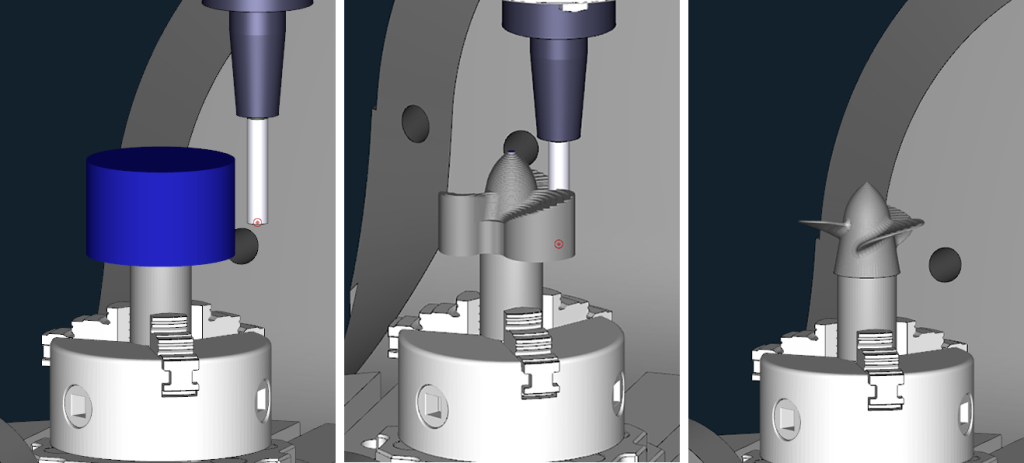
Stock Material Removal. Machine Simulation includes solid-mode simulation of stock removal based on your NC code. You can define your stock manually, load it as an STL file, and export the resulting stock as an STL when you’re done. High and low tolerance options give you control over the balance between visual fidelity and simulation speed.
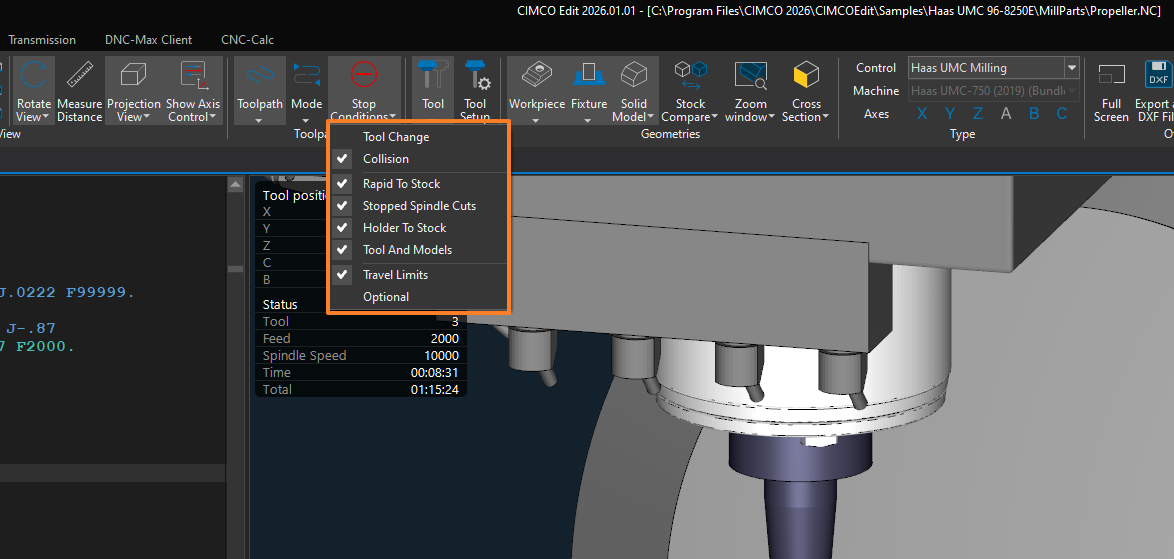
Stop Conditions. You can configure the simulation to pause automatically when specific conditions occur, such as a tool change, a collision, or an axis reaching its travel limit. This is useful for inspecting the machine state at critical moments in the program without having to manually watch and react.
[Click image to enlarge.]
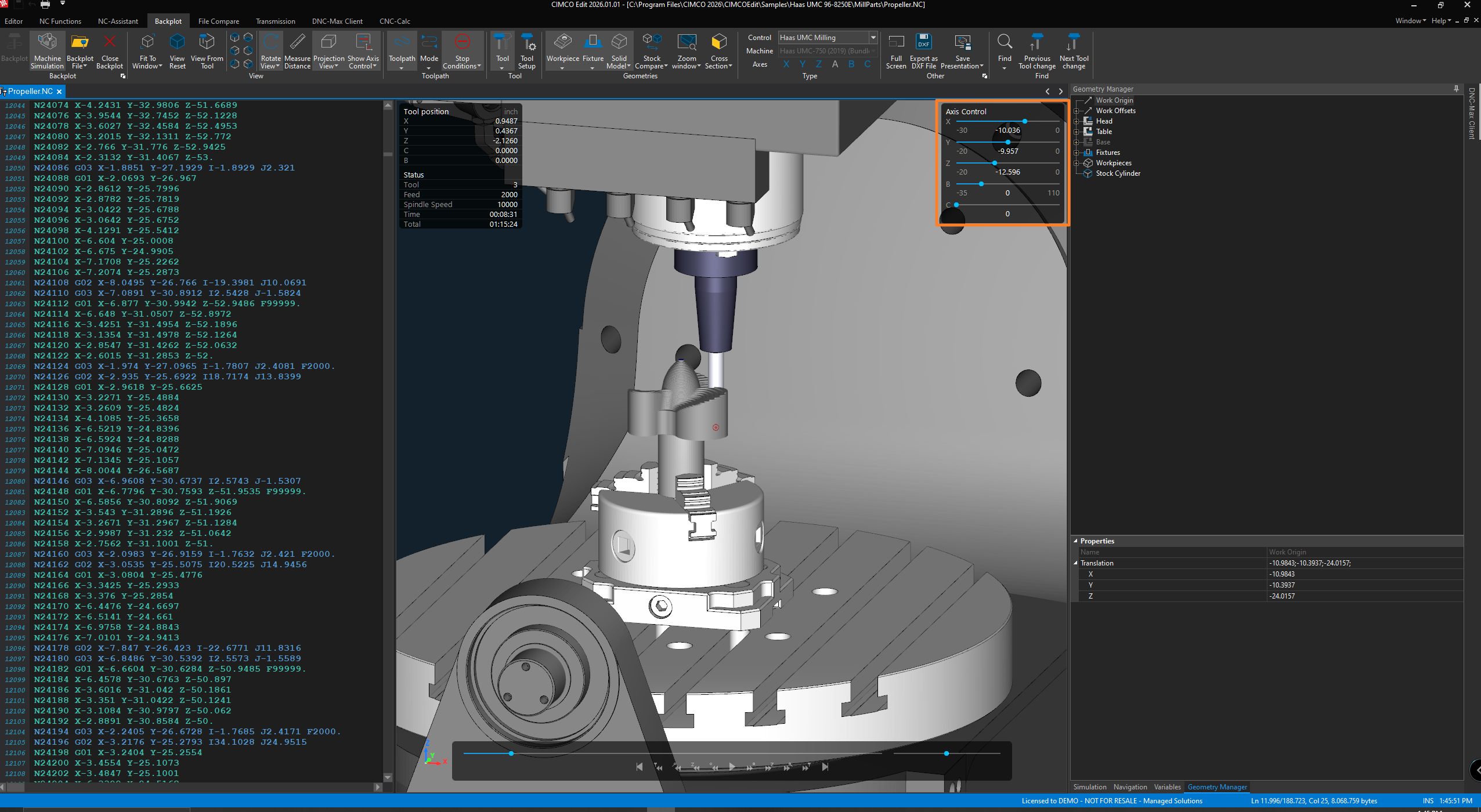
Axis Control. The Axis Control panel lets you see all axis positions relative to their travel limits in real time during simulation. Any axis that exceeds its limit is flagged immediately, and you can use sliders to adjust and observe the effect live.
[Click image to enlarge.]
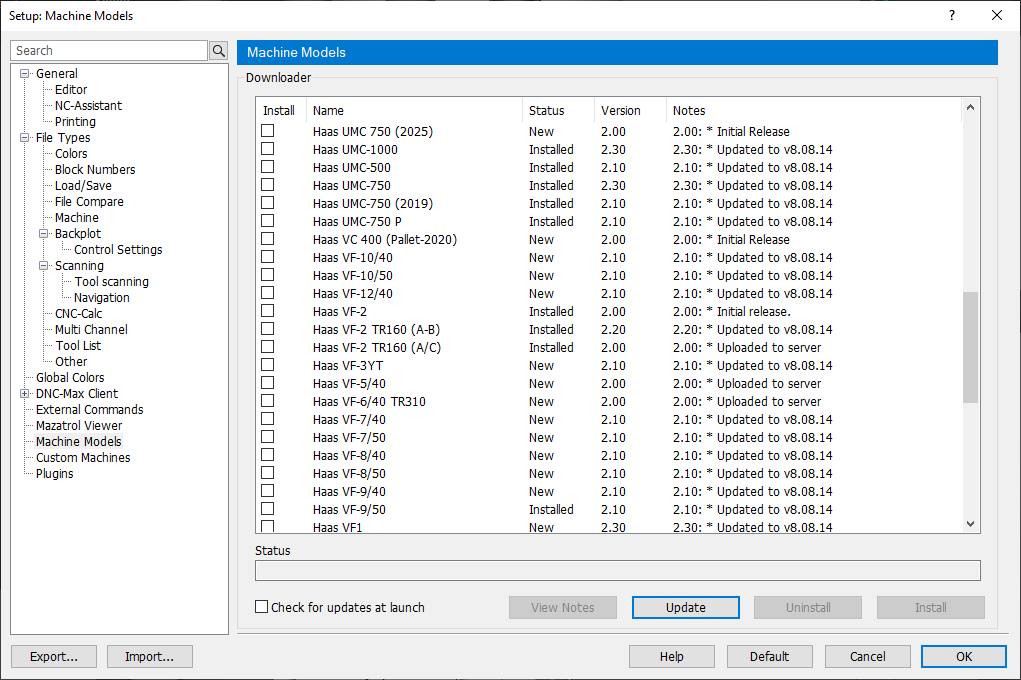
Downloadable Machine Configurations. Pre-configured machine models from vendors including Haas can be downloaded and installed directly from within CIMCO Machine Simulation. If your machine isn’t available in the library, the Machine Configuration Editor lets you build your own.
[Click image to enlarge.]
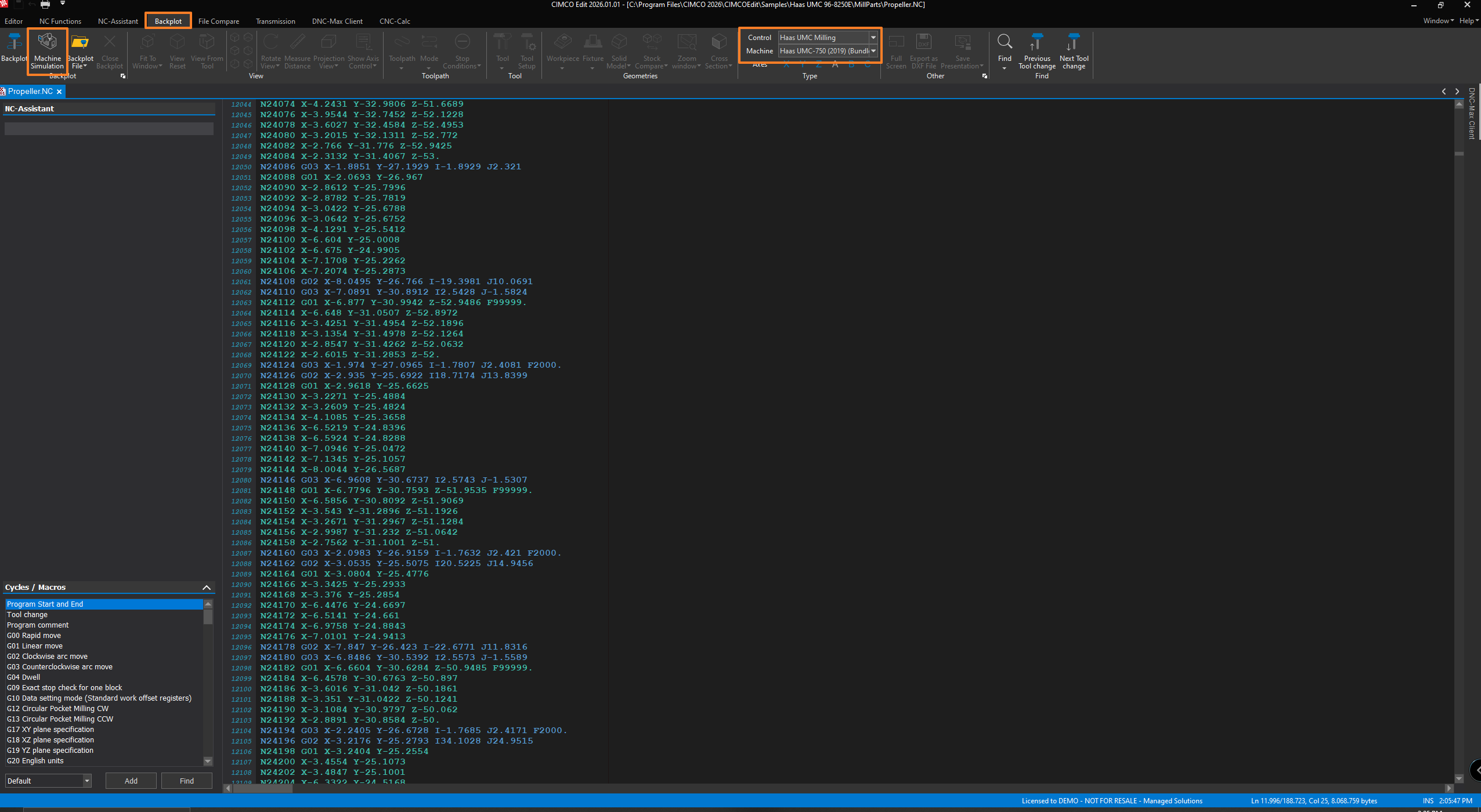
Integrated with CIMCO Edit. Because Machine Simulation is built as an add-on to CIMCO Edit, you get simulation and NC editing in the same environment. You can identify an error in simulation, fix the code in the editor, and re-simulate immediately, without switching applications.
[Click image to enlarge.]
Who Should Consider It?
CIMCO Machine Simulation is a practical fit for shops that:
- Run complex multi-axis programs where a crash could mean significant machine damage or downtime.
- Have high-value materials or parts where scrap costs are substantial.
- Are frequently setting up new jobs or shifting work between machines.
- Want to reduce first-article failures and the time spent proving out programs at the machine.
- Are onboarding new CNC programmers and want a lower-risk training environment.
It’s priced competitively and since it runs within CIMCO Edit, shops already using CIMCO’s editing tools will have a short path to adoption.
Getting Started
CIMCO Machine Simulation is available as a free 30-day trial. If you’d like to talk through whether it’s a good fit for your operation, or if you need help with setup and configuration, contact us and we’ll be happy to walk you through it.
