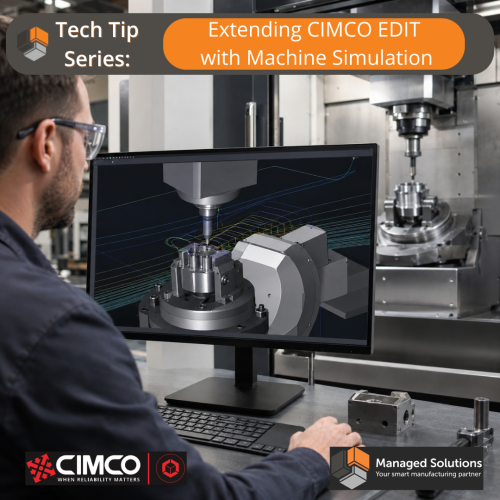
Extending CIMCO Edit with Machine Simulation
CIMCO Edit ships with a solid backplotter and a GPU-accelerated solid simulation engine. For a lot of shops, that is enough for everyday verification. But
Your Smart Manufacturing Partner
Joe’s TLDR Summary
CIMCO Machine Simulation verifies NC programs on a 3D model of your actual CNC machine, detecting collisions and axis-limit violations before production begins. It links issues directly to the corresponding NC code, supports multiple machine configurations and CAM integrations, and helps reduce prove-out time, scrap, and costly machine crashes.
Every CNC programmer knows the feeling. You have a complex 5-axis program, the post looks right, the backplot looks clean, and you send it to the machine. Then something unexpected happens at the control, a tool length offset is different than simulated, the fixture is a little further left than you thought, or a rotary move sweeps through a clamp that backplot had no way to know about. The result is a damaged tool at best, a broken fixture or scrapped part at worst, and a conversation nobody wants to have.
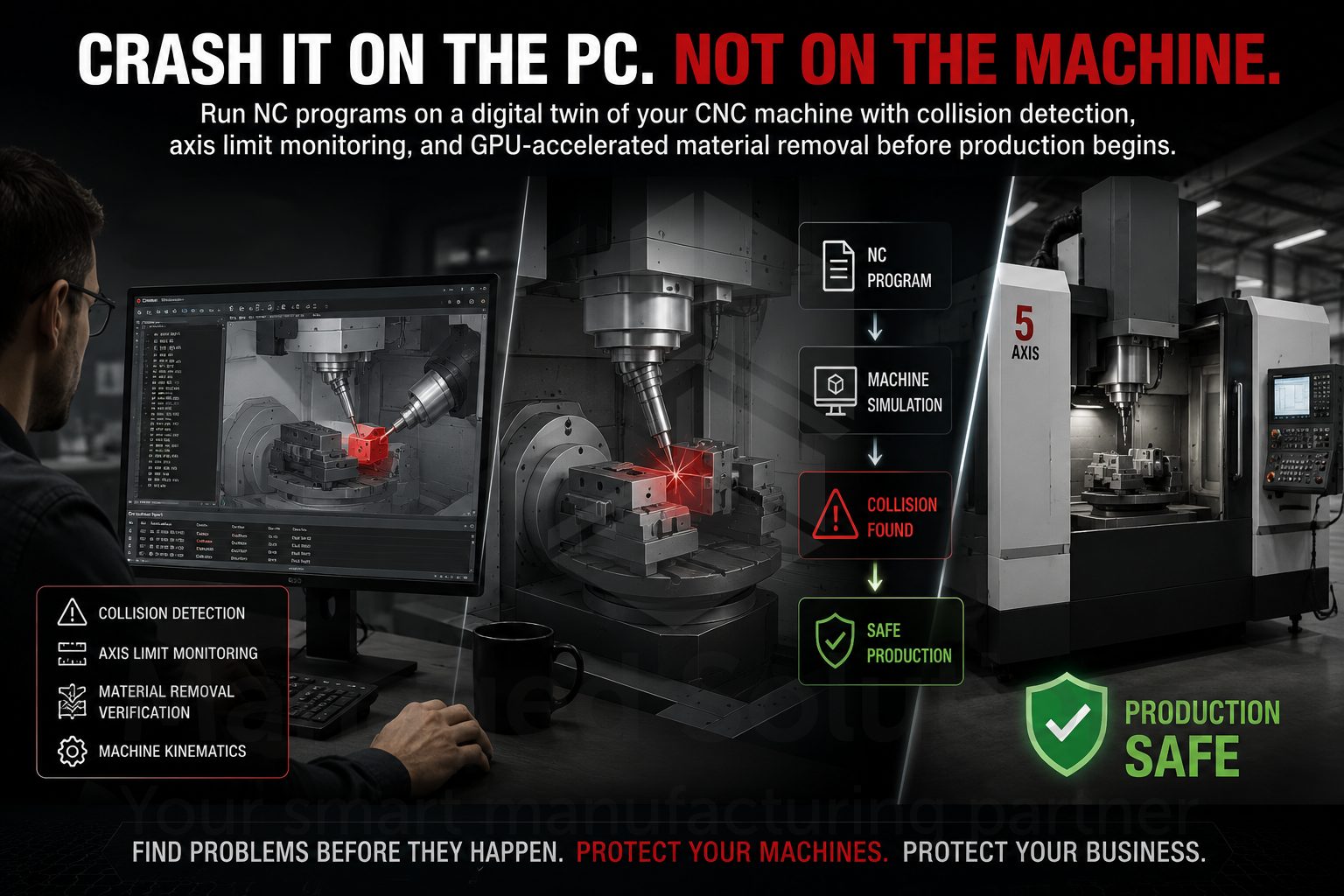
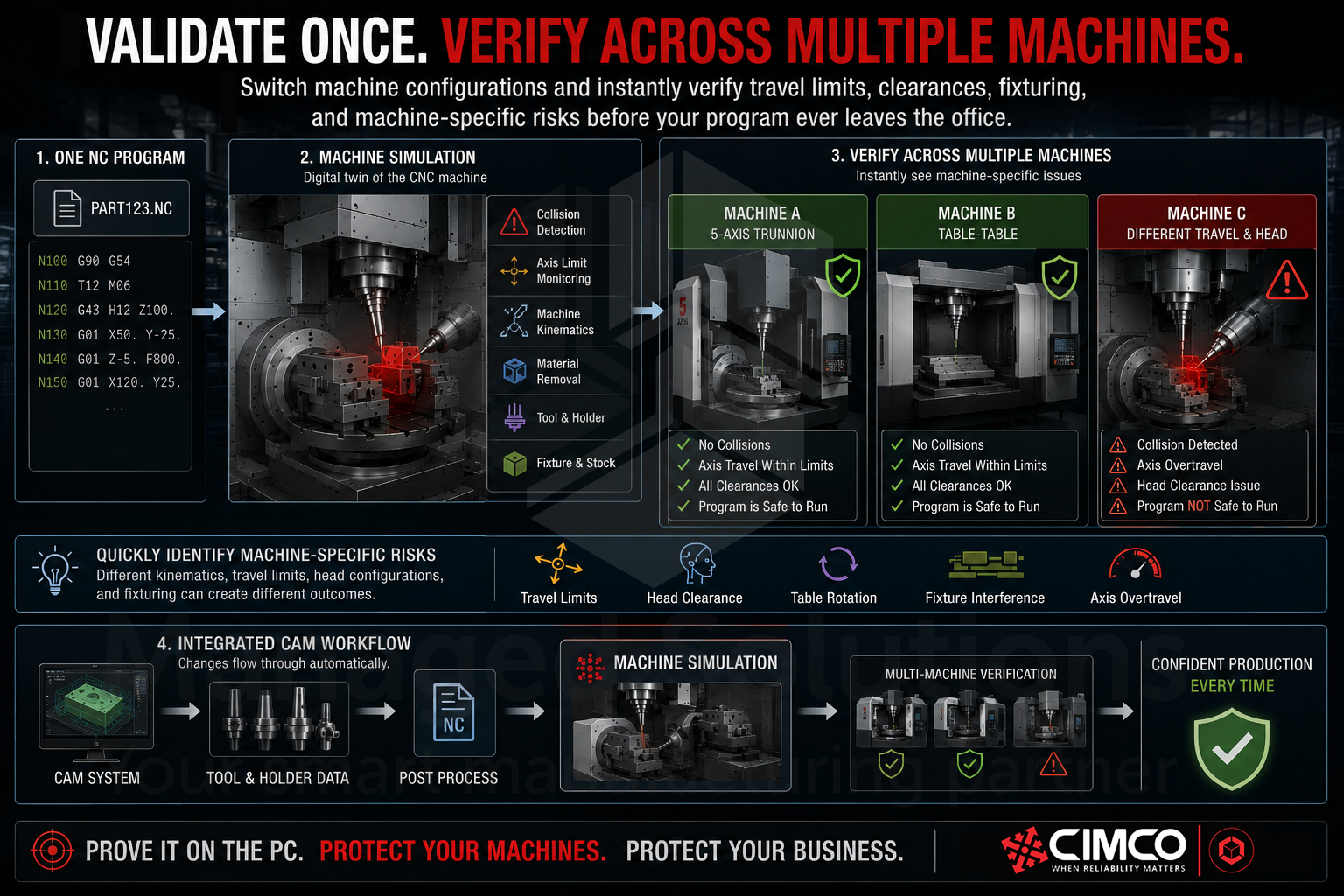
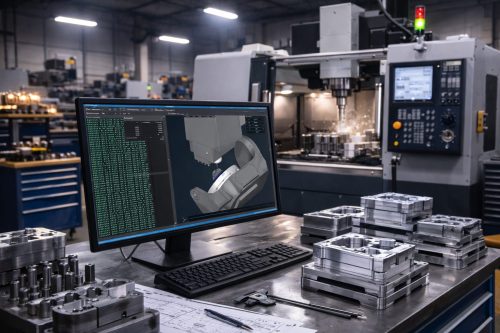
CIMCO Machine Simulation is the add-on for CIMCO Edit which moves this discovery from the machine to your PC, before any material is touched. It runs your NC program on a 3D model of your actual CNC machine, including the head, spindles, table, and peripheral devices, with GPU-accelerated solid material removal, automatic collision detection, and real-time axis travel limit monitoring. What you see on screen is what the machine would do. If there is a problem, you’ll find it here.
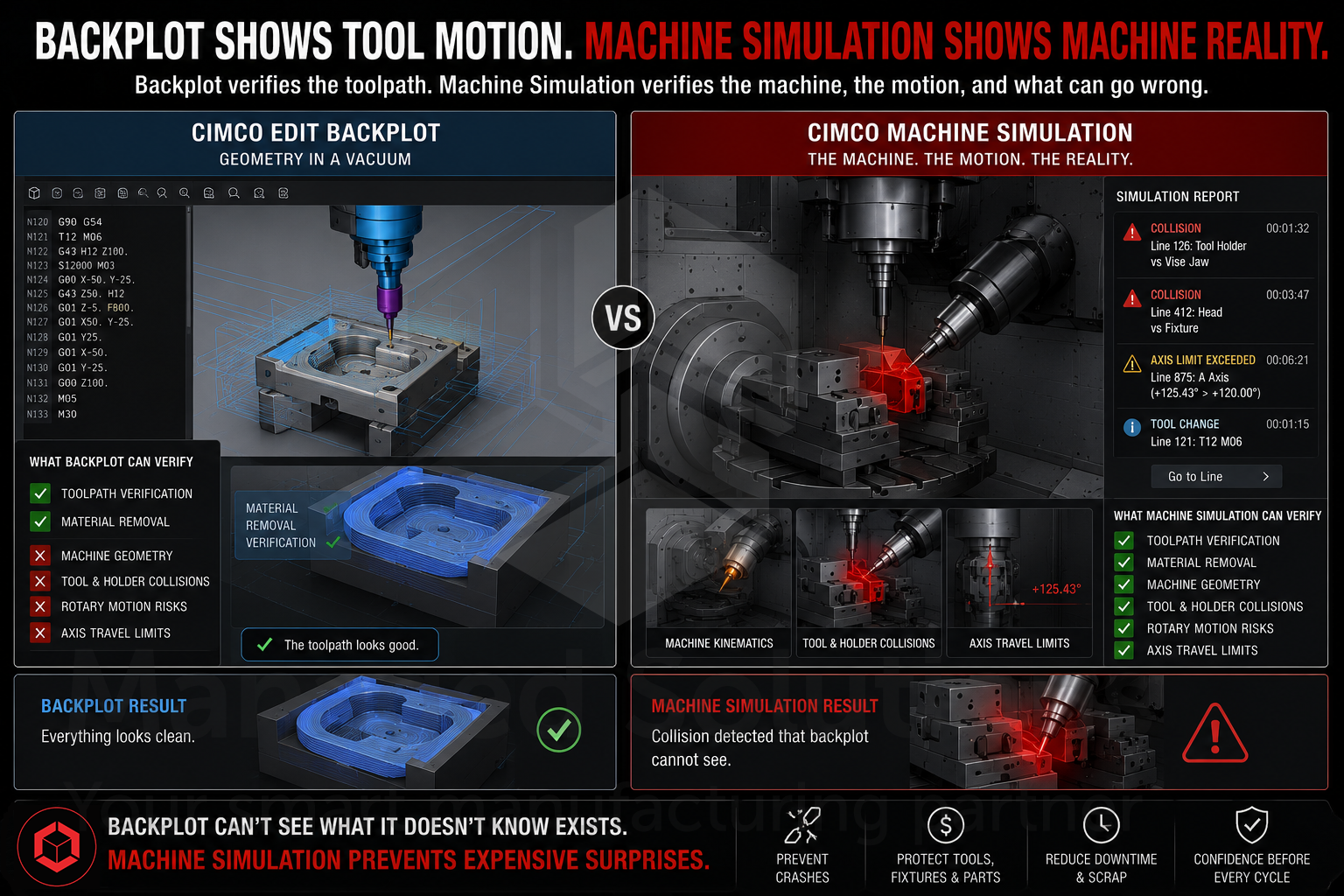
CIMCO Edit already includes a solid, genuinely useful backplotter. However, backplotting operates in a geometric vacuum. It shows where the cutting tool will move, but it does not account for the machine executing those movements. It cannot tell you whether the tool holder will clip the vise jaw on the approach move, whether a rotary table maneuver sweeps the spindle head into the part, or whether any of your axis travel limits are being exceeded.
Machine Simulation closes this gap completely. The simulation runs inside the actual kinematic model of your machine, with the head, table, and base moving in the same physical relationships as the real iron. Collisions between any combination of tool, holder, workpiece, stock, fixture, and machine components are detected automatically and flagged in the Simulation Report. Any axis which exceeds its travel limit highlights in red immediately.
The difference between backplot and Machine Simulation is the difference between knowing your toolpath is clean and knowing your machine will not crash while running it.
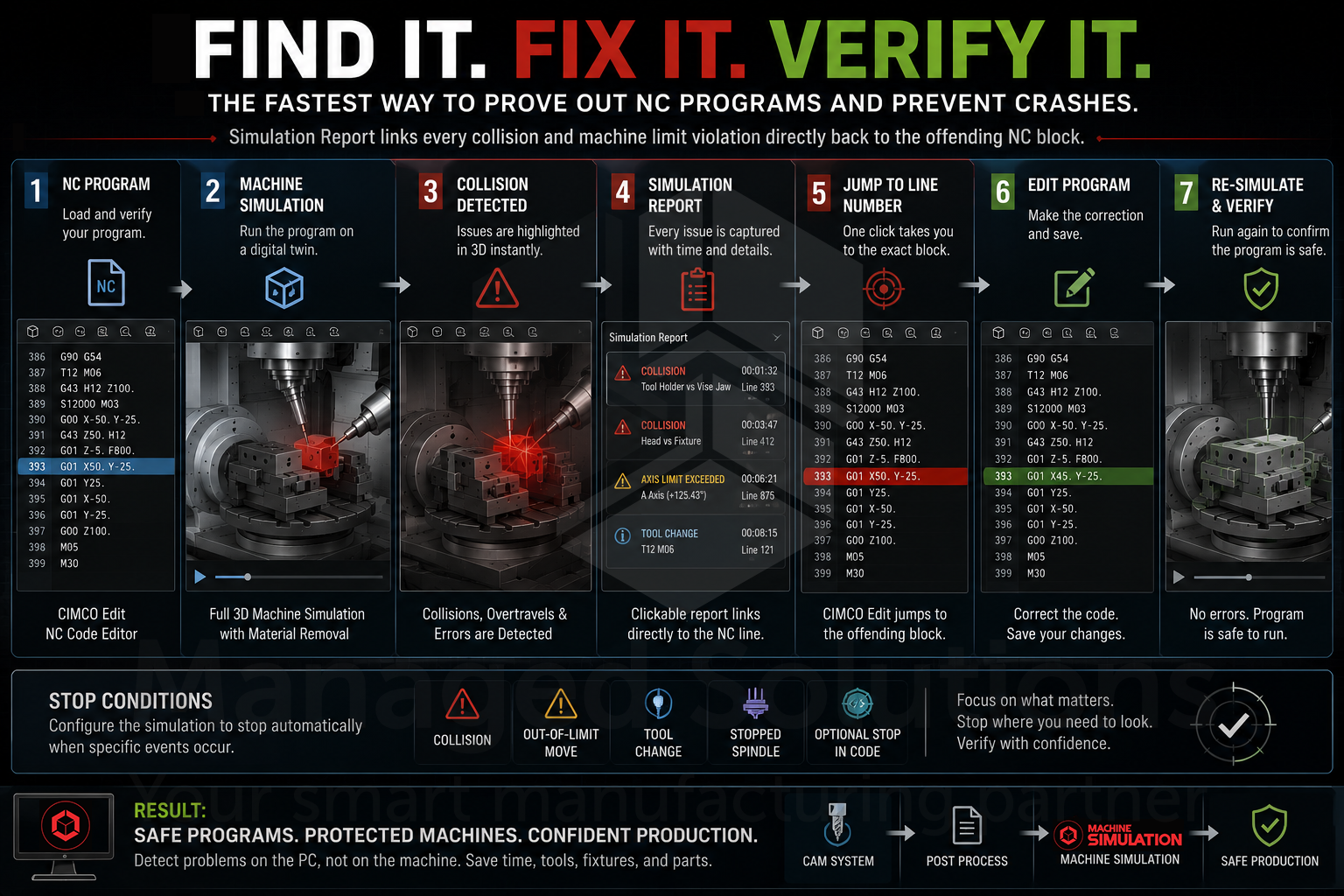
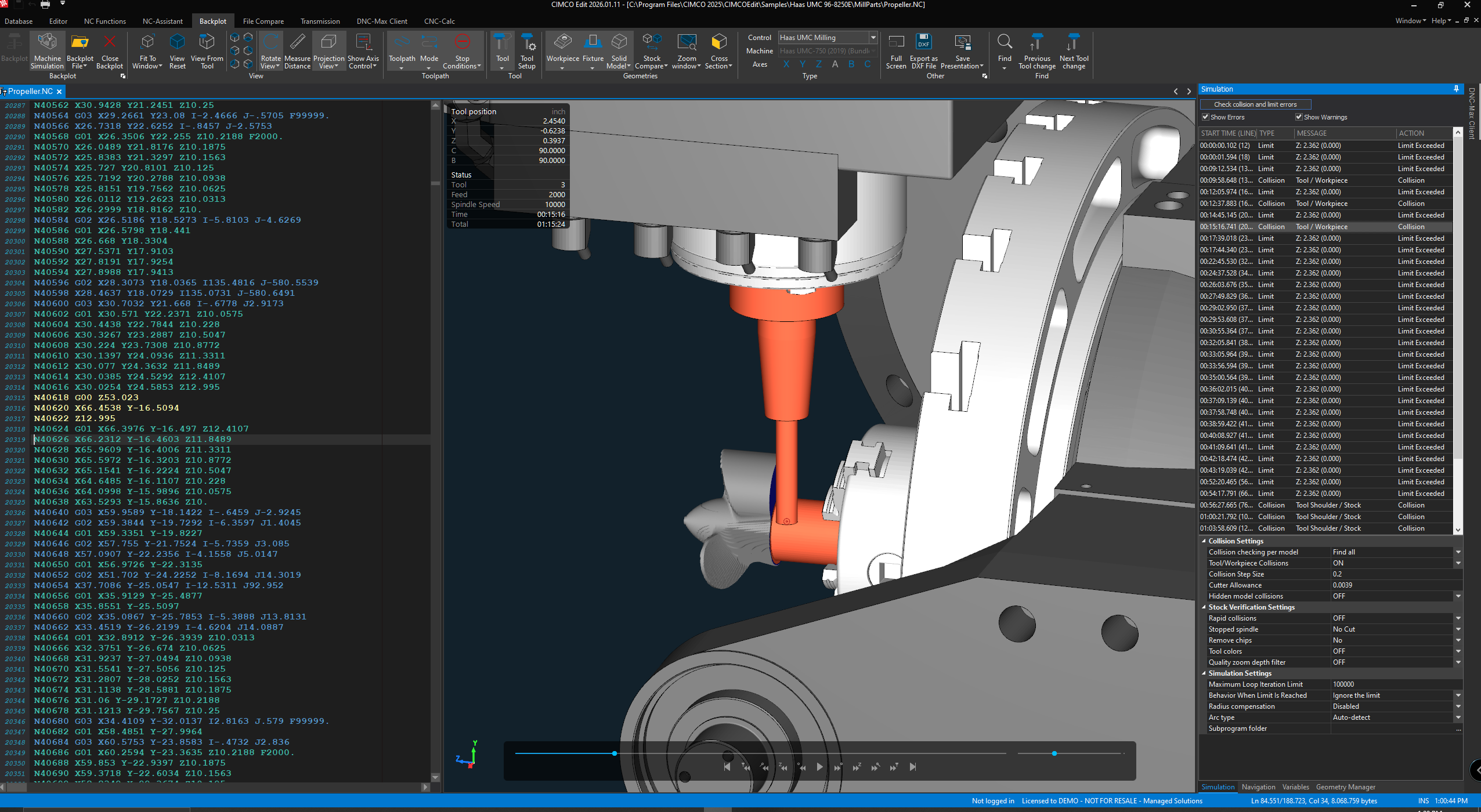
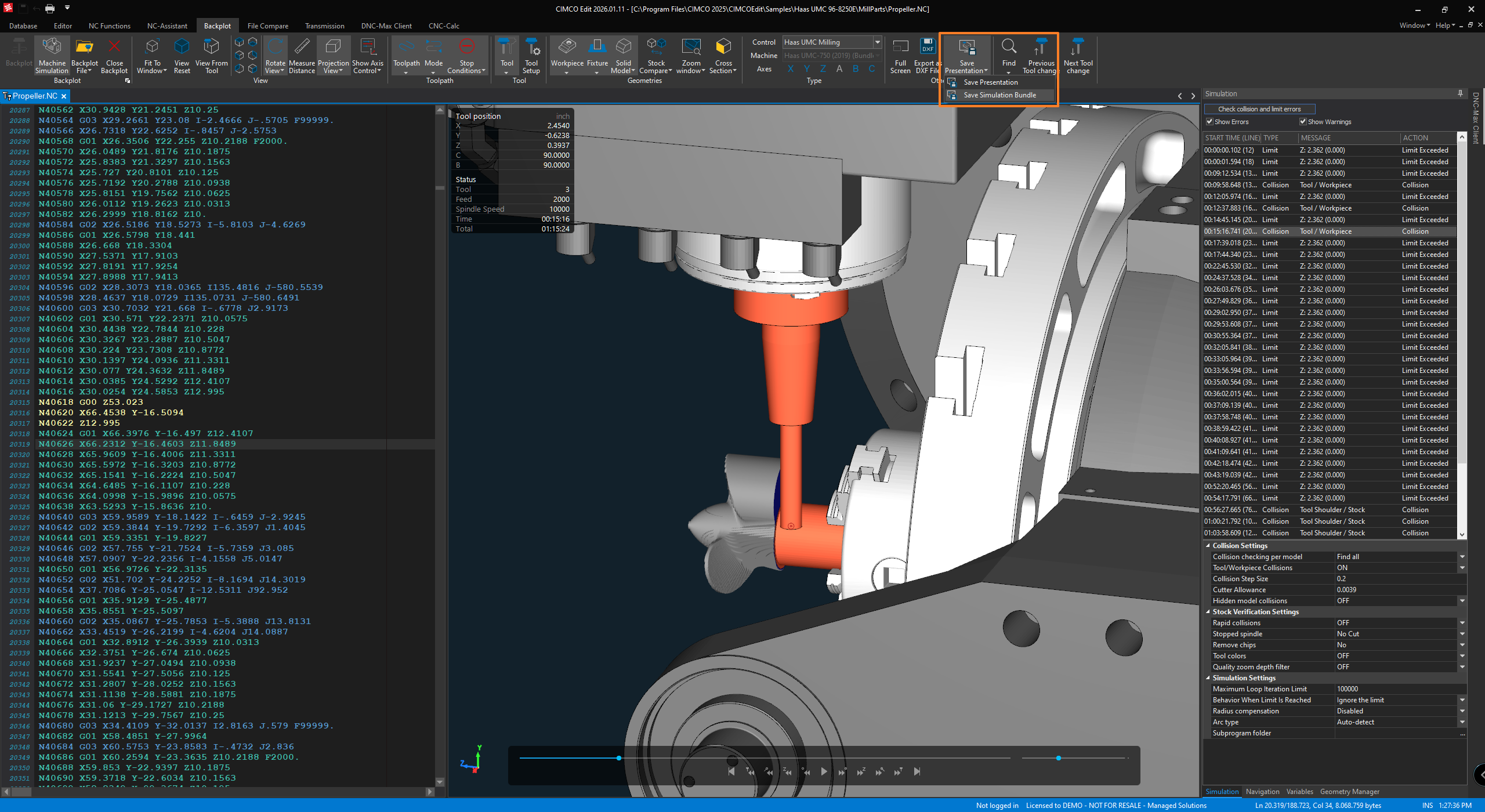
When Machine Simulation is running, the Simulation Report captures every collision, every out-of-limit move, and every error detected during the run. Each entry in the report is clickable. Select an error and CIMCO Edit jumps directly to the corresponding line in your NC program. Fix the code, and the Simulation Report updates to confirm the problem is resolved. There is no manual searching, no counting lines, no guessing which block caused the issue.
The side-by-side layout of NC code, 3D simulation, and Simulation Report is the workflow which makes this fast. An issue surfaces in the 3D view, components turn red at the point of collision, the report captures it with a timestamp, and you navigate directly to the block that caused it. Edit, re-simulate, verify. This iteration loop happens in minutes on a PC rather than hours at the machine.
Running a 3,000-line program from start to finish every time a change is made is not practical. Stop Conditions let you configure specific events which automatically pause the simulation when they occur: a collision, a tool change, an out-of-limit move, a stopped spindle, or an optional stop in the code. Set the conditions relevant to the section of the program being verified, run the simulation, and it stops right where you need to look. Jump to the next occurrence, verify, move on.
This is particularly useful during first-article proofing of complex multi-axis programs where the concern is not the entire program but specific operations; a particular tool change sequence, a tricky 5-axis interpolation, or a transition between operations where the machine geometry creates risk.
The most important step before running Machine Simulation is having the right machine model installed and selected. It is this step which catches people off guard the first time.
Machine Simulation does not require a separate installation. The feature is already installed as part of CIMCO Edit, and becomes available once a valid license key is in place. What is needed is the machine model itself.
Pre-configured machine models from major vendors, including Haas, can be downloaded and installed directly from within CIMCO Edit through the Machine Models section in the Editor Setup. Downloaded machines are clearly labeled with a “(Bundled)” suffix in the Control Type dropdown under the Backplot tab.
Once a machine is installed, selecting the correct Control and Machine in that dropdown before starting Machine Simulation is what tells the system which 3D model and kinematic configuration to use.
If the machine being simulated is not available in the downloadable library, the Machine Configuration Editor in Editor Setup allows a custom machine to be built from scratch.
Alternatively, CIMCO can build it. Send them the machine specifications and they will return a single .MacBundle file which installs everything in the right place with no manual configuration required.
PRO TIP FROM THE SHOP FLOOR:
Before running a full program in Machine Simulation, spend five minutes in the Geometry Manager verifying the stock, fixture, and work offsets are positioned correctly relative to the machine origin.
The most common source of false collision reports in a new Machine Simulation setup is not a real collision in the program but a stock or fixture that is offset from where it would actually be on the physical machine.
Pulling up the Geometry Manager and confirming the XYZ positions of the workpiece and any fixture models before the first run avoids a lot of confusing results. It also ensures that what Machine Simulation reports is an accurate reflection of what would happen in production.
Shops which run families of parts across multiple machines face a common problem when a machine goes down or capacity needs to shift. There is no quick way to verify that a program written for one machine is safe to run on a another machine with different travel limits, different fixturing, or a different head configuration.
Machine Simulation handles this directly. Switching between machine configurations in the Control Type dropdown and re-running the simulation is all that is required.
Any issues specific to the new machine geometry, travel limit differences, head clearance changes, or fixture conflicts surface immediately before the program ever leaves the office. What might otherwise be a tense dry-run at the machine with a nervous operator standing by becomes a 10-minute verification on a PC.
For shops running Mastercam, SolidCAM, or other supported CAM systems, Machine Simulation can receive tool, holder, and geometry data directly from the CAM environment.
When changes are made in the CAM system and a new NC program is posted, those changes are reflected in Machine Simulation immediately. There is no manual re-entry of tool data, no updating holder dimensions by hand, no risk the simulation is running with outdated tooling information.
This closes the loop between the programming environment and the verification environment, which is where discrepancies tend to hide in shops which maintain separate tool libraries in different systems.
CIMCO Edit includes a Presentation Viewer which lets a complete simulation be exported and shared as a standalone file that can be viewed without CIMCO Edit installed.
The simulation file captures the full 3D environment; material removal, tool and holder motion, machine axis movement, and the NC program panel. The viewer supports the same playback controls, zoom and rotate, cross-section view, and collision inspection as the simulation inside the editor.
This is useful for several practical situations, such as sharing a simulation with a customer for approval before cutting, sending a proof to a quality engineer who doesn’t have a CIMCO Edit license, archiving the simulation alongside the setup sheet and tool list for a completed job, or training a new operator on expected machine behavior for a complex program without putting them at the machine.
CIMCO Machine Simulation does not replace CIMCO Edit’s solid backplotter for everyday verification.
The two tools serve different levels of verification, and both have their place. For 3-axis work on machines without complex kinematics or fixturing concerns, the solid backplotter in CIMCO Edit handles the job well. Machine Simulation is where the investment pays off on complex multi-axis programs, expensive materials, tight fixturing, or any operation where a crash has serious consequences.
If you are already running CIMCO Edit and want to understand how Machine Simulation fits into your existing workflow, our Introduction to CIMCO Machine Simulation covers the practical case for adding it and what the day-to-day experience looks like.
If you want to understand how Machine Simulation fits alongside the broader CIMCO toolset, our CIMCO Edit product page explores the full picture.
REALISTIC MACHINE VERIFICATION
Simulate NC programs using a 3D model of your CNC machine. View machine movement, multi-axis motion, and material removal before production begins.
COLLISON AND LIMIT DETECTION
Automatically detect collisions involving machine components, tools, holders, fixtures, and workpieces. Axis travel violations are also flagged in real time.
FASTER TROUBLESHOOTING
Simulation errors are recorded and linked directly to the corresponding line of NC code. Configurable stop conditions make it easier to locate and correct problems quickly.
FLEXIBLE WORKFLOW AND SHARING
Test programs across different machine configurations and import data from supported CAM systems. Export simulations for customer approvals, training, and internal documentation.
CIMCO Machine Simulation is available as a free 30-day trial.
Find out what your machine is going to do before your machine performs the job.
If you would like to see Machine Simulation running on your own programs and machines, or want to discuss whether it makes sense for your specific operation, please contact us.
We have been working with CIMCO Edit and Machine Simulation long enough to know exactly where it delivers value and how to get it configured correctly from day one.
Start your free 30-day Demo of CIMCO products today.

CIMCO Edit ships with a solid backplotter and a GPU-accelerated solid simulation engine. For a lot of shops, that is enough for everyday verification. But
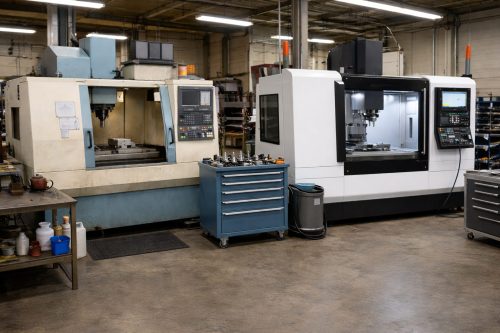
Many shops still rely on CNC programs that were written years, or even decades ago. These legacy CNC programs may have run successfully on older
For CNC shops, a mistake discovered on the machine is a mistake which has already cost you something – whether that’s a scrapped part, a