Understanding the Import Queue in CIMCO NC-Base and CIMCO MDM
If you have ever had a machinist edit a program at the machine control and send it back without anyone in the programming department knowing
Your Smart Manufacturing Partner
Joe’s TLDR Summary
CIMCO Edit 2026 is the industry-standard NC editor for CNC programmers, combining backplot, solid simulation, NC-Assistant macro automation, File Compare, and built-in DNC in a single application that actually understands G-code. New enhancements like NC-Assistant, GPU-accelerated solid simulation, and smarter workflow tools make it easier to standardize processes, verify programs, and manage complex CNC operations with confidence.
If you’ve ever had to open Notepad to edit a G-code file because your editor didn’t understand CNC, this is for you. If you’ve ever manually renumbered 800 lines of code or stared at a crashed program on a live machine wondering what changed since the last run, keep reading.
CIMCO Edit is the tool CNC programmers have been quietly relying on for decades. The 2026 version is the best it has ever been. Let’s get into it.
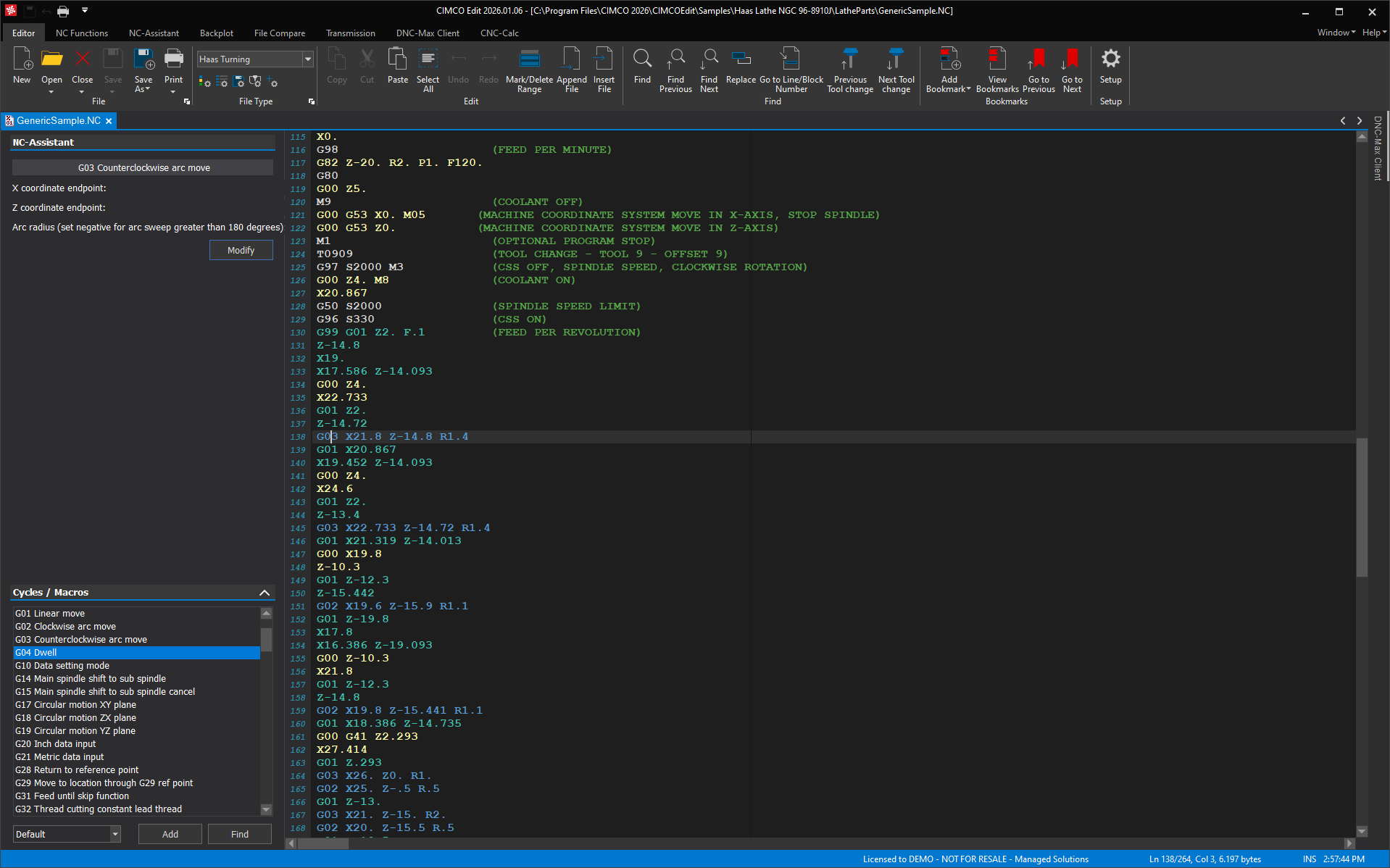
CIMCO Edit is the world’s most popular NC program editor. It’s a full-featured editing, simulation, and communication platform which runs on Windows and treats NC code like a first-class citizen, not just text.
This means it knows the difference between a G02 and a G03. It knows what M06 does. It can step through your program line-by-line and show exactly where the tool is going in 3D.
This is not a general-purpose text editor with syntax highlighting bolted on. It was built from the ground up for CNC programmers, by people who understand what CNC programmers actually do on the shop floor.
This is the feature I am most excited about when talking to shops. It is the one that tends to get the least attention because people assume it’s just a fancy tooltip system. It is not.
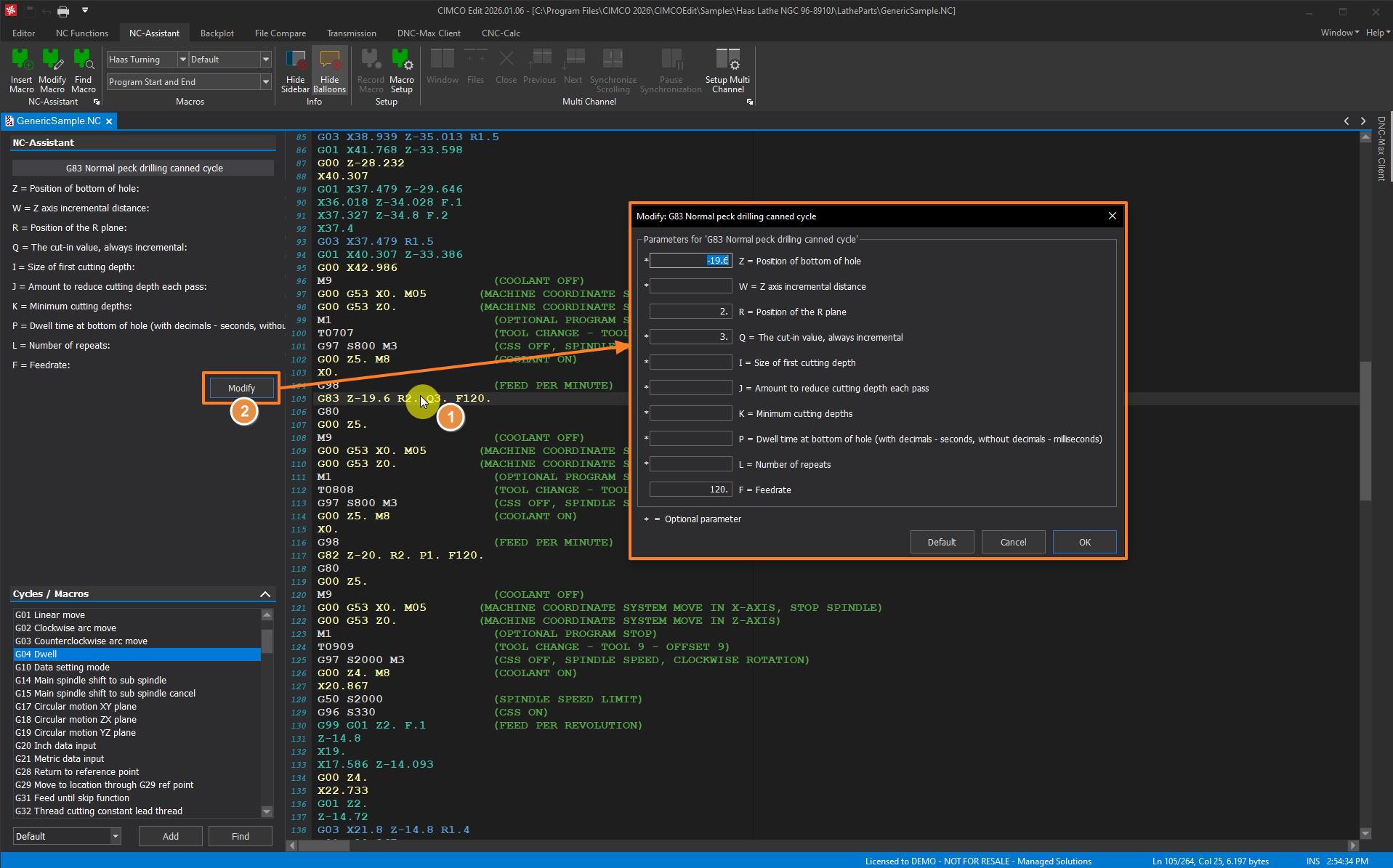
The NC-Assistant is a full macro and cycle management engine that can eliminate a huge chunk of repetitive, error-prone work that happens every time someone opens a new program.
The core idea is every shop has blocks of code they write over and over. Program headers. Tool change sequences. Spindle warmups. Canned drilling cycles. Probing routines.
Right now, most shops handle those in one of three ways:
1.) Someone types them from memory and occasionally fat-fingers a value.
2.) Someone copies them from an old program and forgets to update a parameter.
3.) Someone maintains a text file full of snippets they paste in manually.
All of these methods introduce errors. The NC-Assistant replaces all three with a single, consistent, prompted workflow.
On the NC-Assistant tab, there is a sidebar which lists available macros, organized by machine type and macro group. CIMCO Edit ships with a solid library of built-in cycles for ISO Milling, ISO Turning, Heidenhain, and others. But the real power is when you add your own.
Here’s an example. Say your shop uses a Fanuc VMC and every program starts with a specific safety block that sets your modal defaults, your work offset, and calls your tool length measurement routine. That block is 8 lines long and has 4 values that change per job: work offset number, tool number, spindle speed, and feed for the measurement pass. Right now, someone is either typing that by hand or copy-pasting it and editing manually.
With NC-Assistant, this is how you set that up once and never type it again:
1.) Open a program that already has your standard header block written correctly.
2.) Select those 8 lines.
3.) Go to NC-Assistant > Setup > Record Macro.
4.) Give it a name like “Job Start – Fanuc VMC” and click OK.
5.) The Macro Setup dialog opens. Here is where you define which values in this block are parameters, give them labels, set acceptable ranges, and mark which ones are required vs. optional.
6.) Click OK. This macro now lives in your library.
From this point on, inserting your header block is as follows:
1.) Open the NC-Assistant sidebar.
2.) Double-click “Job Start – Fanuc VMC”.
3.) Fill in four values in the dialog.
4.) Click OK.
Eight lines of correct code drop into your program. Every time. No typos and no wrong offsets left over from the last job.
This is the part that really saves time mid-program. Position your cursor anywhere on a macro block in your code. The Modify Macro icon in the ribbon becomes active. Click it, and the same parameter dialog opens pre-populated with the current values. Change what you need, click OK, and the code updates in place. You are never manually hunting through G-code looking for the right line to edit.
You can also use the NC-Assistant sidebar as a live inspector. Hover over any M or G code and a balloon tooltip pops up with a plain-English breakdown of what that code does and what its parameters are set to.
For anyone onboarding a new programmer or reviewing someone else’s code, this feature alone is worth the price.
PRO TIP FROM THE SHOP FLOOR:
Your macro library is stored as >> .MAC files in %appdata%\CIMCO 2026\CIMCOEdit\Types\
Those files are everything.
If you spend two days building out a clean macro library for your shop and then someone reinstalls Windows, those files are gone unless you backed them up.
Put that folder on a network share or in version control. Seriously. Two seconds of drag-and-drop now versus two days of rebuilding later is an easy trade.
Also worth noting, you can import and export individual .MAC files. This means your macro library is portable across machines and shareable across your team. If your lead programmer has a dialed-in set of macros, everyone else on the floor can have the same library in about 60 seconds.
Here is a situation we have seen more than once. A programmer outputs a 5-axis program from CAM. The post processor has a quirk in it, and a rapid move buries the tool into the fixture at full speed.
Nobody catches it before the machine does because verification in the CAM system looked clean and the program went straight to the floor.
The result is a scrapped part, a damaged fixture, and a conversation nobody wants to have.
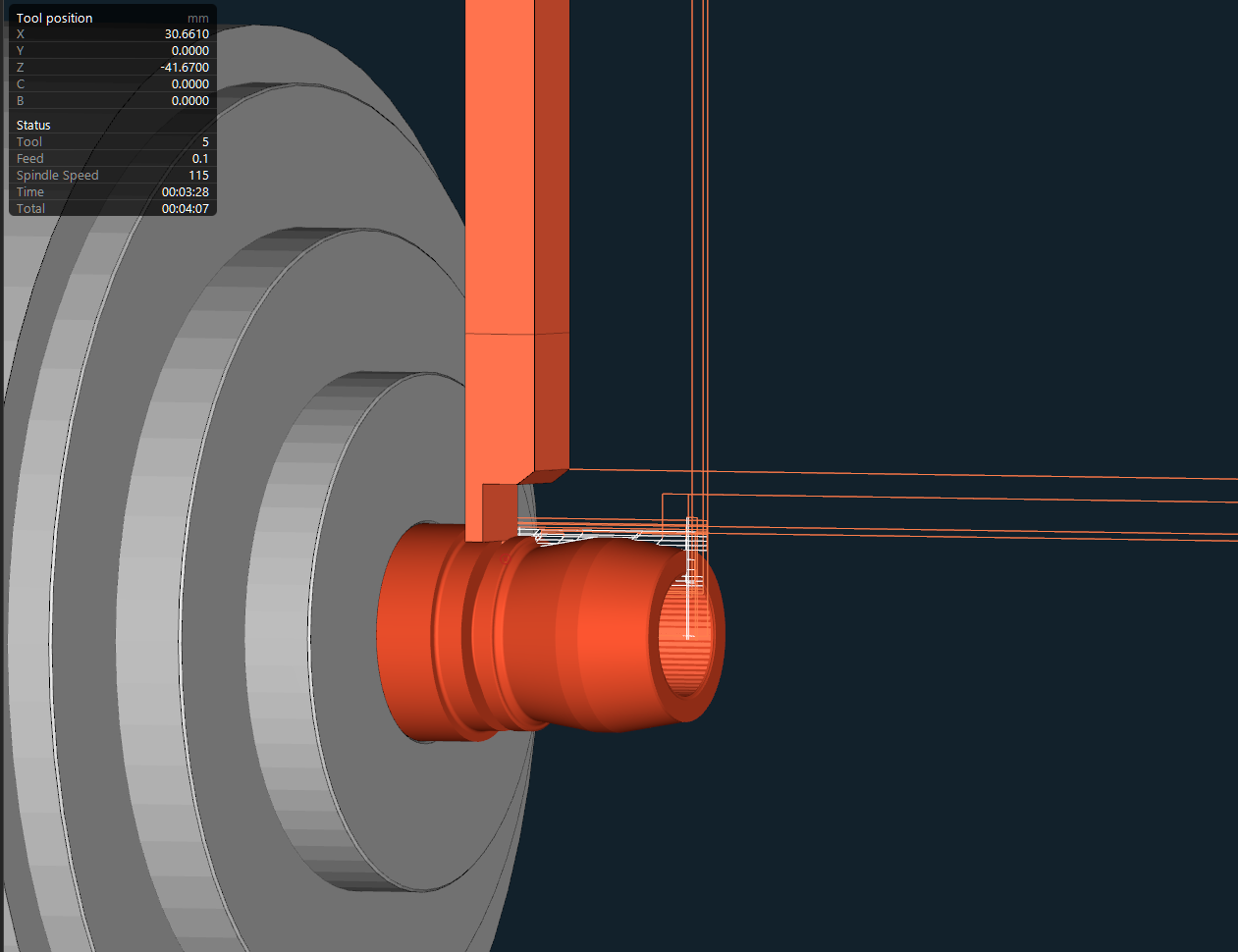
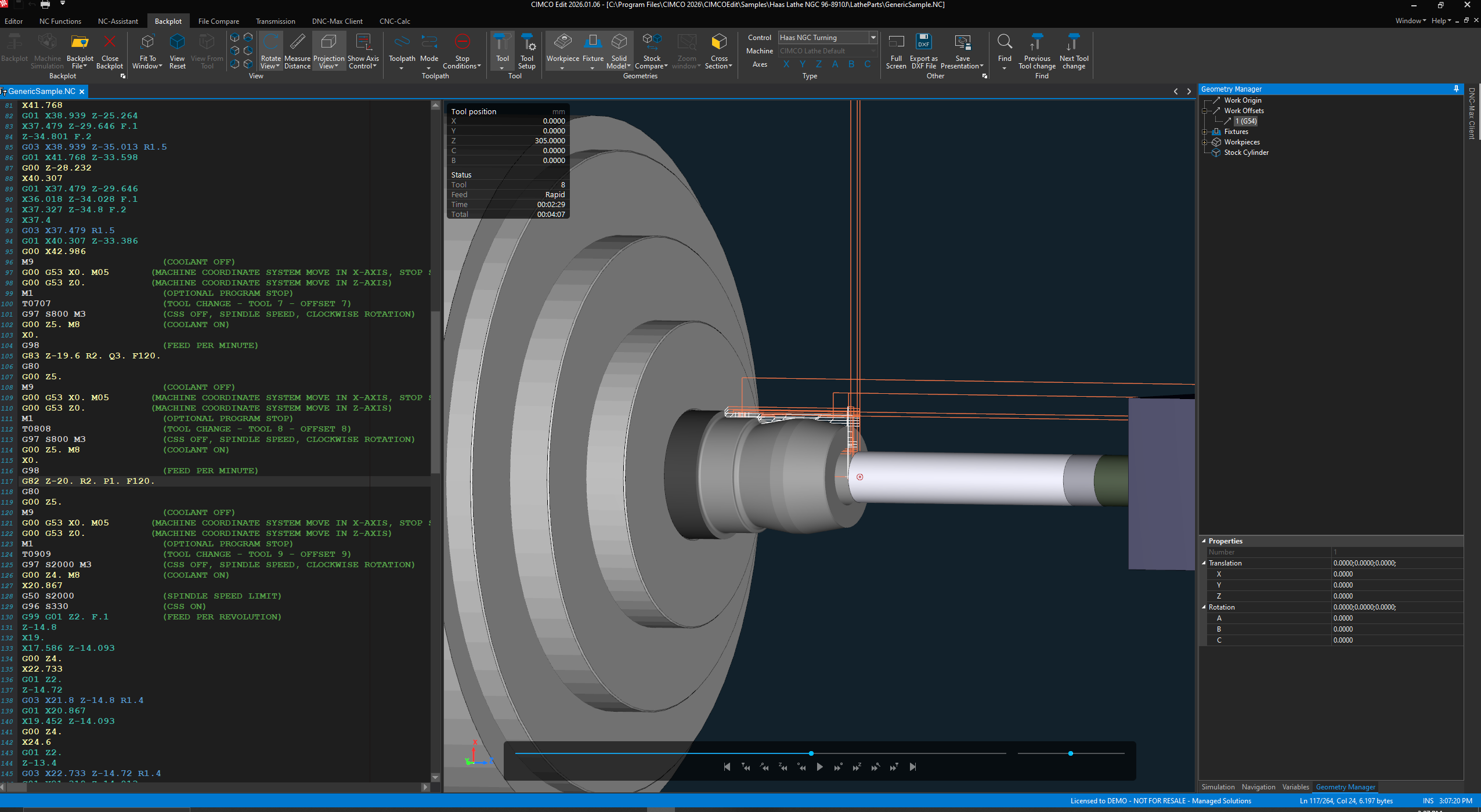
CIMCO Edit 2026 has a GPU-accelerated solid simulation engine that shows you exactly what the machine is going to do before you send a single line of code.
You load your stock, define your tools and holders, and watch material get removed in real time as the simulation plays through your program. Gouge detection and toolholder collision checking run automatically. If the holder clips the wall of a pocket, you find out in simulation, not at the spindle.
The backplotter handles up to 5-axis milling, turning, and mill-turn with C+Y axis. You can step forward and backward through the program line-by-line, jump to any tool change, track tool position in 3D view, and toggle between showing the full toolpath, the cutting moves, or the rapids. There is a toolpath graphs view that plots each axis position over time, which is genuinely useful for catching things like unexpected Z excursions or a feed that is still running when it should have gone to rapid.
One feature which does not get enough attention is operation structure view. CIMCO Edit scans your program and builds a navigation tree of every tool change, spindle speed change, and feed change. It is organized so you can jump directly to any operation without scrolling. On a 3,000-line program with 14 tool changes, that alone saves real time.
The simulation setup is also sticky. Define your stock dimensions and tool library once, and those settings are saved in a .setup file next to your NC program. The next time you open the program, the simulation environment loads automatically. No re-entering stock dimensions every time you need to verify a revision.
If the solid simulation in CIMCO Edit has you thinking about what a full virtual machine environment would look like, this is exactly where CIMCO Machine Simulation picks up. Our Introduction to CIMCO Machine Simulation discusses what this adds on top of backplot. Specifically, the ability to simulate your actual machine kinematics, fixtures, and axis travel limits, which is the difference between knowing your toolpath is clean and knowing your machine will not crash while running it.
This is the feature that earns its keep the moment something goes wrong on the floor, and you need to figure out whether the program running on the machine matches what engineering released.
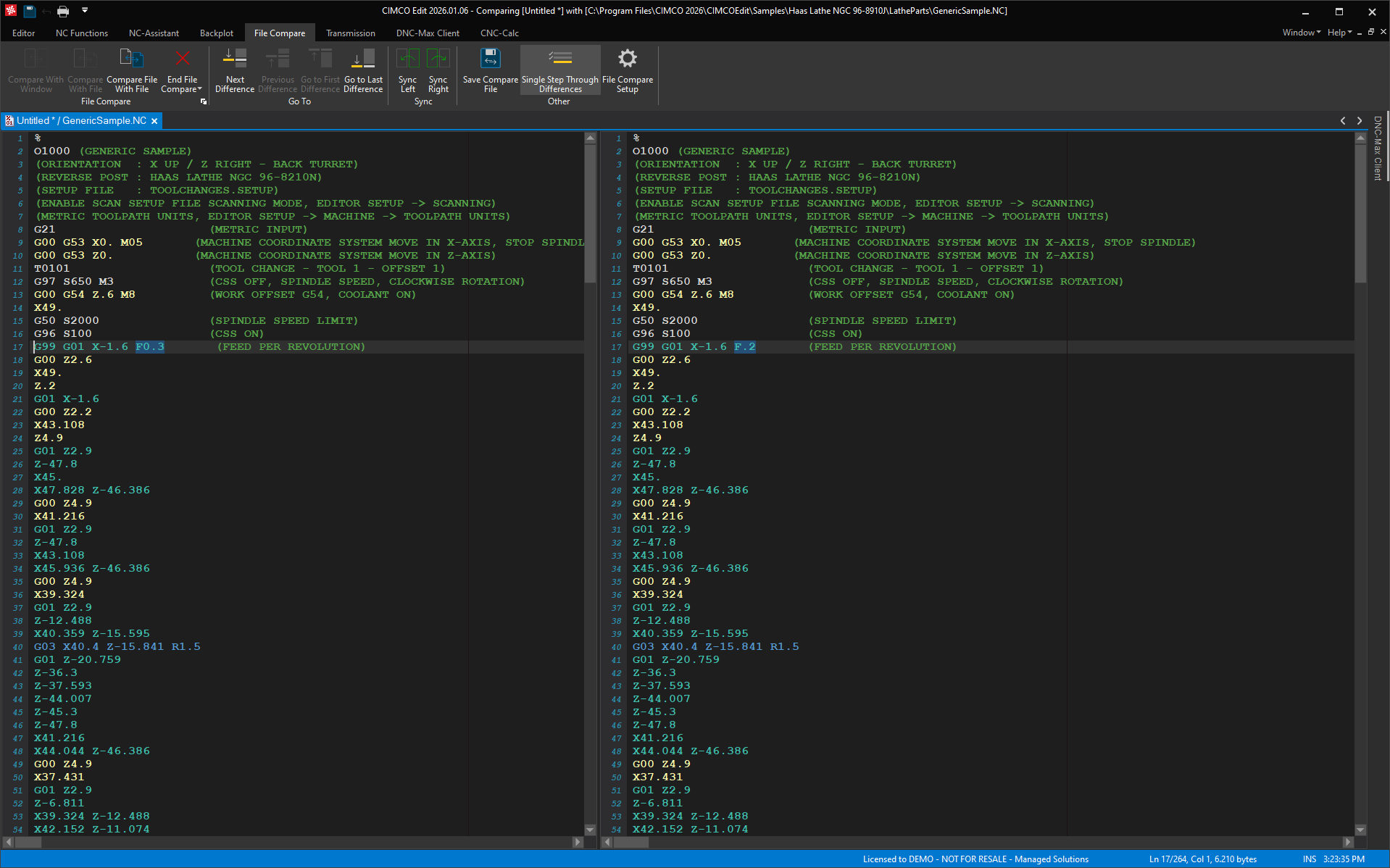
CIMCO Edit’s File Compare puts two programs side-by-side in a split window and highlights every difference.
Insertions, deletions, and changes are all color-coded so you can step through them one at a time or view them all at once. The smart part is what it ignores. Trivial formatting differences like block renumbering and whitespace do not show up as changes, so you are not left wading through false positives to find the one line which actually matters.
You can sync changes from one side to the other in either direction with a single keystroke, and you can save the diff output to a text file if you need a record of what changed between revisions.
Real-world use case: A shop was running a family of similar parts on a VMC. Someone had modified one of the programs at the machine without logging the change. When a dimension came back out of tolerance, no one could identify what had been altered. We pulled the program off the machine, loaded both versions in CIMCO File Compare, and had the answer in 45 seconds. One feedrate had been bumped up mid-program, apparently to save cycle time. File Compare made short work out of what could have been an hours-long investigation.
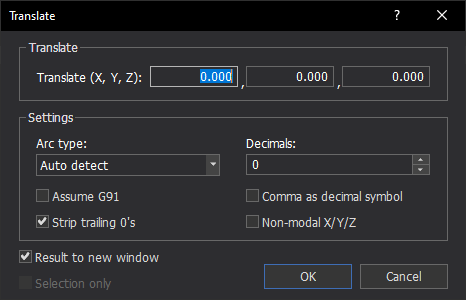
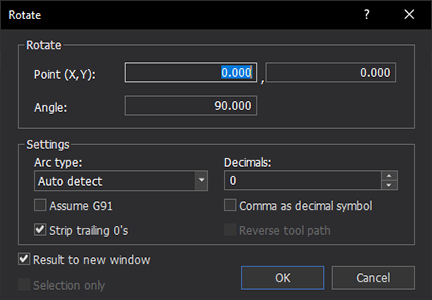
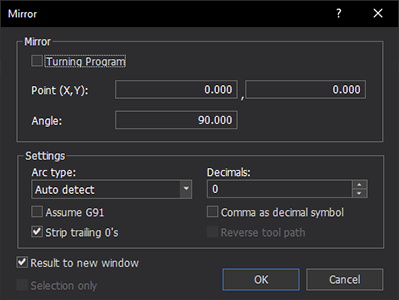
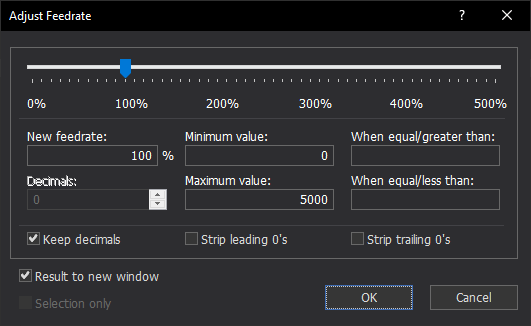
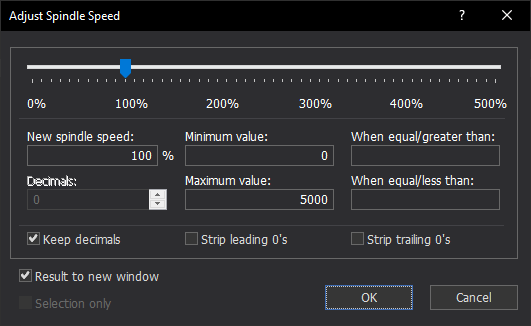
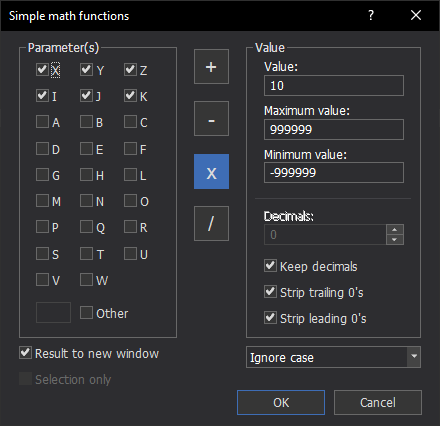
The NC Functions tab is where CIMCO Edit earns its reputation as a programmer’s editor rather than just a viewer. These are the tools which let you make global, intelligent changes to your code without touching it line-by-line.
Click any image to enlarge.
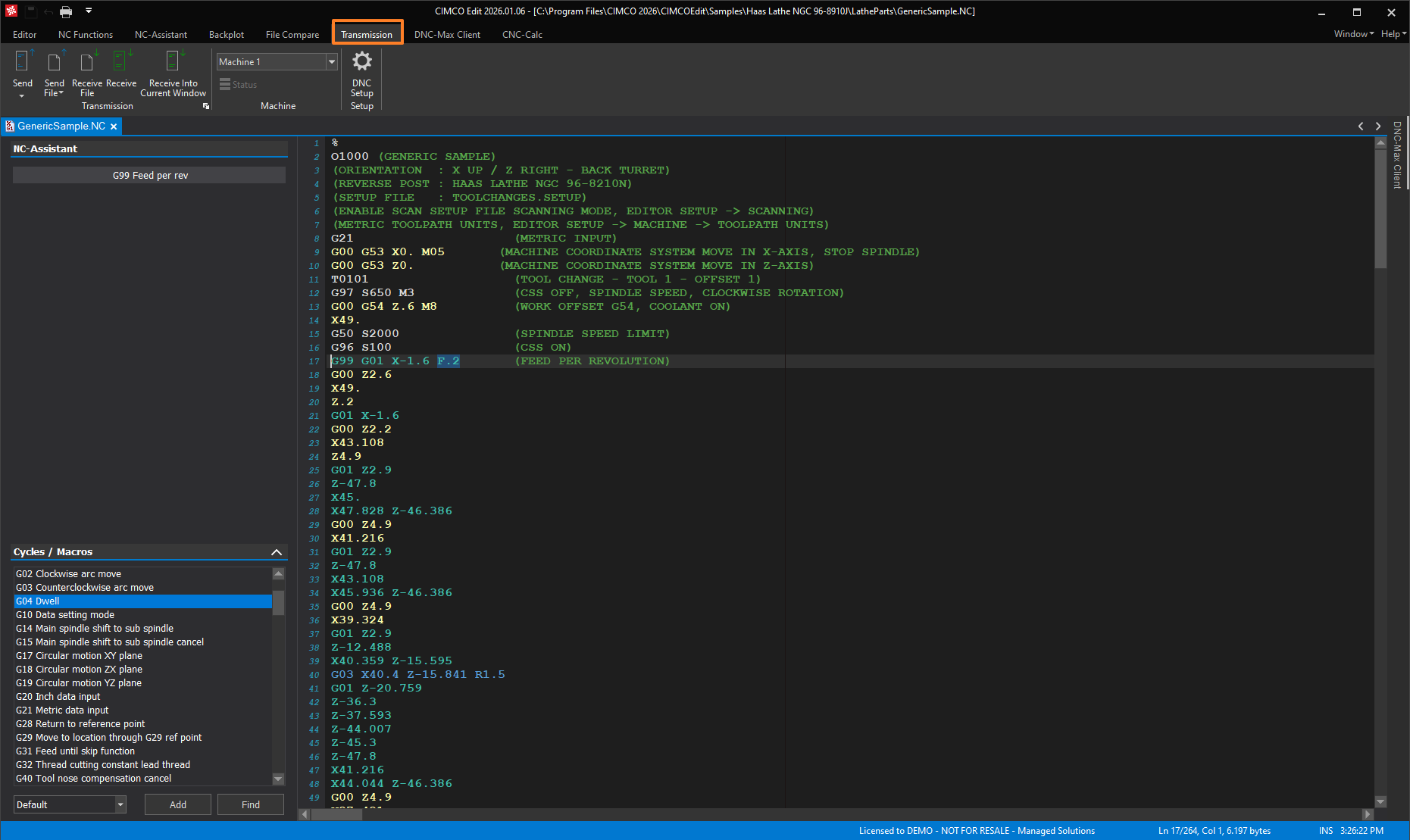
CIMCO Edit includes direct DNC communication for both RS-232 serial and FTP connections so you can send and receive programs from your CNC machines without switching to a separate application.
Configure your machines once in the DNC Setup dialog, name them, and set your protocol and port parameters. From that point on, sending a program is a dropdown selection and one click.
The Transmit Status dialog shows you live RS-232 signal states, bytes sent, and a real-time terminal view of the data stream. If a transfer hangs, you can see exactly where it stopped. For FTP, the split window view gives you a local and remote directory browser which works like a standard FTP client, all within the editor.
Important Note: The built-in DNC in CIMCO Edit is solid for single-machine or simple shop setups. If you are managing a network of machines, need file approval workflows, or want centralized program management with revision control, this is where CIMCO DNC-Max steps in. It plays a much larger part in a connected shop floor and here we explain the role of CIMCO DNC-Max as Industry 4.0 Middleware between your machines and data system.
CIMCO Edit’s built-in transmission is a great starting point, but it is worth knowing where the upgrade path leads to.
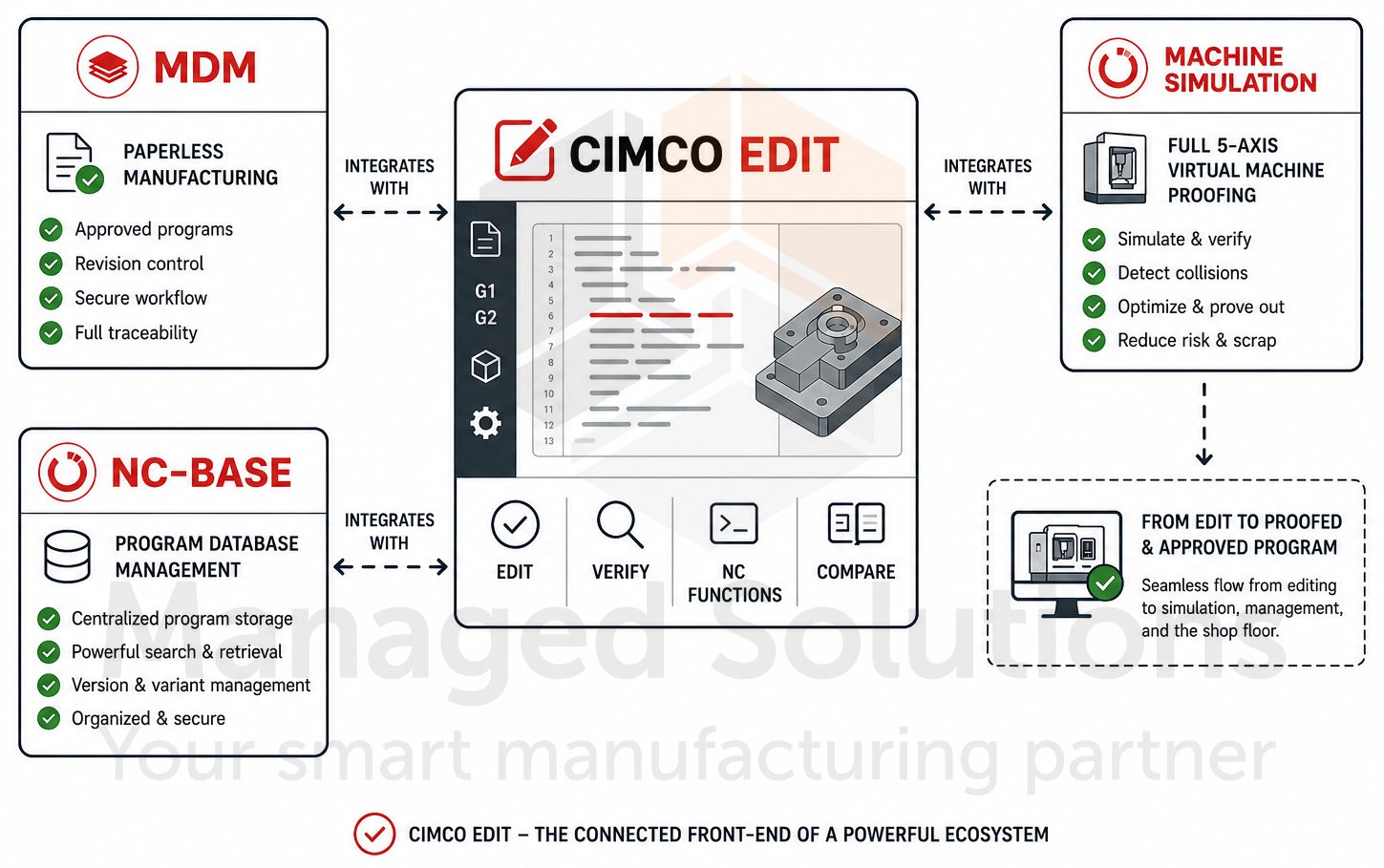
CIMCO Edit does not exist in isolation. It is the front-end of a much larger ecosystem.
The same editor integrates with CIMCO MDM for paperless manufacturing, CIMCO NC-Base for program database management, and CIMCO Machine Simulation for full 5-axis virtual machine proofing. If you are using Mastercam, SolidCAM, or EdgeCAM, there is a good chance CIMCO Edit is already embedded in your workflow as the OEM editor.
If you want to further understand how these products fit together, our article on CIMCO Software as Industry 4.0 Middleware lays it out clearly.
If you are thinking about training your team, our CIMCO Editor Training and Educational Resources page is the most comprehensive starting point available outside of CIMCO’s own documentation.
FASTER SIMULATION & VERIFICATION
CIMCO Edit 2026 helps shops validate programs faster, visualize machining more clearly, and reduce costly errors before code reaches the machine.
Smarter NC Programming & Editing
Programmers can edit, compare, troubleshoot, and manage complex CNC code more efficiently — especially in high-mix or multi-axis environments.
Improved Tool & Process Management
CIMCO Edit 2026 improves consistency across jobs by helping teams organize tooling data and streamline setup processes.
Modernized Shop-Floor Workflow
The 2026 release focuses on usability and connectivity, making day-to-day CNC workflows smoother across programming offices and the shop floor.
Editor comes with all the essential features needed for modern NC program editing including NC specific functions, math, transforms, drag/drop editing and more.
CIMCO Edit 2026 is available as a perpetual license or subscription. You can evaluate it free for 30 days directly from CIMCO.
If you want to talk through which version is right for your shop, compare it against what you are currently using, or get a walkthrough of the NC-Assistant and simulation features before you buy, contact us directly.
We have been implementing and supporting CIMCO products since 2006. With 20+ years of CIMCO experience, we know these tools inside and out, backwards and forwards.
The editor your shop runs every day matters. Make sure it is the right one.
Start your free 30-day Demo of CIMCO products today.

If you have ever had a machinist edit a program at the machine control and send it back without anyone in the programming department knowing

[Click image to enlarge.] If you’ve ever had a simulation show the wrong tool geometry or found yourself digging through NC code just to figure

For CNC shops, a mistake discovered on the machine is a mistake which has already cost you something – whether that’s a scrapped part, a