If you have ever had a machinist edit a program at the machine control and send it back without anyone in the programming department knowing about it, you already understand why the Import Queue exists. It is the feature that closes the loop on one of the most common quality gaps in CNC shops: programs leaving the database approved, getting modified on the floor, and coming back in without any review step between the machine and production.
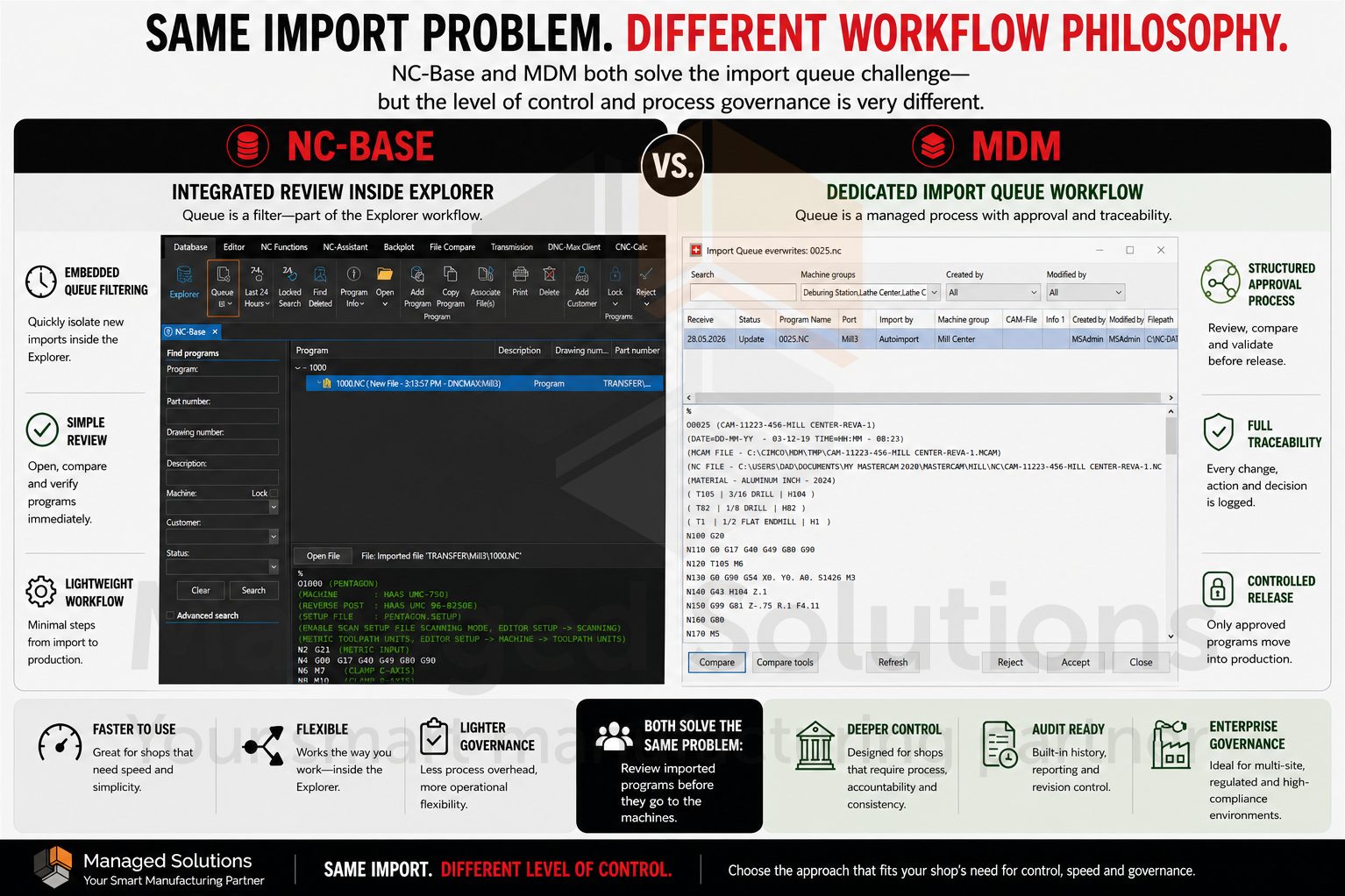
Both CIMCO NC-Base and CIMCO MDM include an Import Queue, and both solve the same core problem. But the way they do it, and how much control they give you over what happens during the review process, reflects the broader difference between the two products.
This article explains how each one works and when each approach makes the most sense.
The Core Problem They Both Solve
When CIMCO DNC-Max auto receives a program from a CNC machine, the default behavior without an Import Queue is straightforward: the received file overwrites the existing program in the database.
If an operator modified the program at the control, that modification is now in the database with no record of who changed it, no comparison against the previously approved version, and no opportunity for anyone to review it before it becomes the live version.
For shops under quality certifications, running tight-tolerance parts, or dealing with any situation where program integrity matters, that default behavior is a risk that needs to be managed.
The Import Queue intercepts received programs before they enter the database and holds them for review. Nothing overwrites the approved version until an authorized user explicitly accepts it.
The Import Queue in CIMCO NC-Base
In NC-Base, the Import Queue works in conjunction with DNC-Max’s auto receive and auto import features.
When a program comes back from a machine, rather than landing directly in the database, it is placed on the queue where it waits for a decision. Programs sitting on the queue are marked with a red indicator in the NC-Base Explorer, so they are visible at a glance.
From the queue, a reviewer has four core options:
- View the incoming file to read it before making any decision.
- Use the Compare with Imported File function to run a side-by-side diff against the current database version using CIMCO Edit’s File Compare, which highlights exactly what changed between what the machine sent back and what was approved.
- Accept the file, either under the existing program name or under a new name using Accept Imported File As.
- Reject it outright.
The configuration options around accept and reject behavior are practical.
The Un-lock When Accepting option automatically unlocks the program when it is accepted from the queue, which is useful if your workflow locks programs when they are sent to the floor. The same option exists for rejection.
The Expire Files on Import queue setting lets you define a time limit in days, after which unreviewed, programs are automatically rejected. This prevents the queue from accumulating stale entries nobody has dealt with.
For shops with multiple programs coming back from the same machine, the Auto Reject Other Imports option will automatically reject any other pending versions of a program when one is accepted. This keeps the queue clean without requiring a reviewer to manually reject duplicates. Associated files, such as setup sheets or tool lists linked to a program, can also be placed on the queue alongside the NC file so the reviewer sees the complete picture.
The NC-Base Import Queue is controlled by user group permissions and requires DNC-Max to be active. Notifications can be sent by email when programs land in the queue, provided the email server settings are configured in DNC-Max.
The Import Queue in CIMCO MDM
The Import Queue in MDM operates on the same fundamental principle, programs come back from machines and wait for review before entering the database, but it is deeply integrated into MDM’s status system, workflow engine, and level structure in ways that make it significantly more configurable for shops that need a formal approval process.
The first difference is the status integration. In MDM, accepting or rejecting a file from the Import Queue can automatically trigger a status change on the program record. When a received file is accepted, the program can be moved to a specific status, such as Received from Floor or Under Review, depending on how the Status Settings are configured for that NC level. When a file is rejected, a different status can be applied. When a file is updated, the same mechanism applies. This means the Import Queue is not just a holding area, it is a step in a configurable workflow where every action changes the documented state of the program in the database.
The second difference is the level-based configuration of the acceptance dialog. In MDM’s Import Queue configuration, you can define which database fields a reviewer must populate when accepting a file from the queue. When a program lands on the queue and a reviewer accepts it, MDM can prompt them for specific information before the file is committed. This could be which machine group it belongs to, which revision level applies, or which job it is associated with. The required fields are configured per level, so the intake dialog for an NC file can ask different questions than the intake dialog for a CAM file or an associated document.
The Database ID feature adds a layer of traceability specific to MDM. When enabled, MDM writes its unique internal database ID into the NC file header when a program is sent to the floor. When that program comes back via the Import Queue, MDM can read the ID from the header and automatically route the file back to the correct record in the database without requiring the reviewer to manually locate it.
The Remove ID When Sending to Different Machine option handles the edge case where a program is sent to a different machine: the ID is stripped from the header so the returning file does not accidentally overwrite the record for the original machine.
The Import Queue in MDM also integrates with the Directory Monitor feature. When a monitored directory receives a new file, MDM can be configured to place it on the Import Queue automatically using an Import queue condition expression and separately handle automatic rejection using an Import queue reject condition. This allows incoming files to be filtered programmatically before they ever reach a human reviewer.
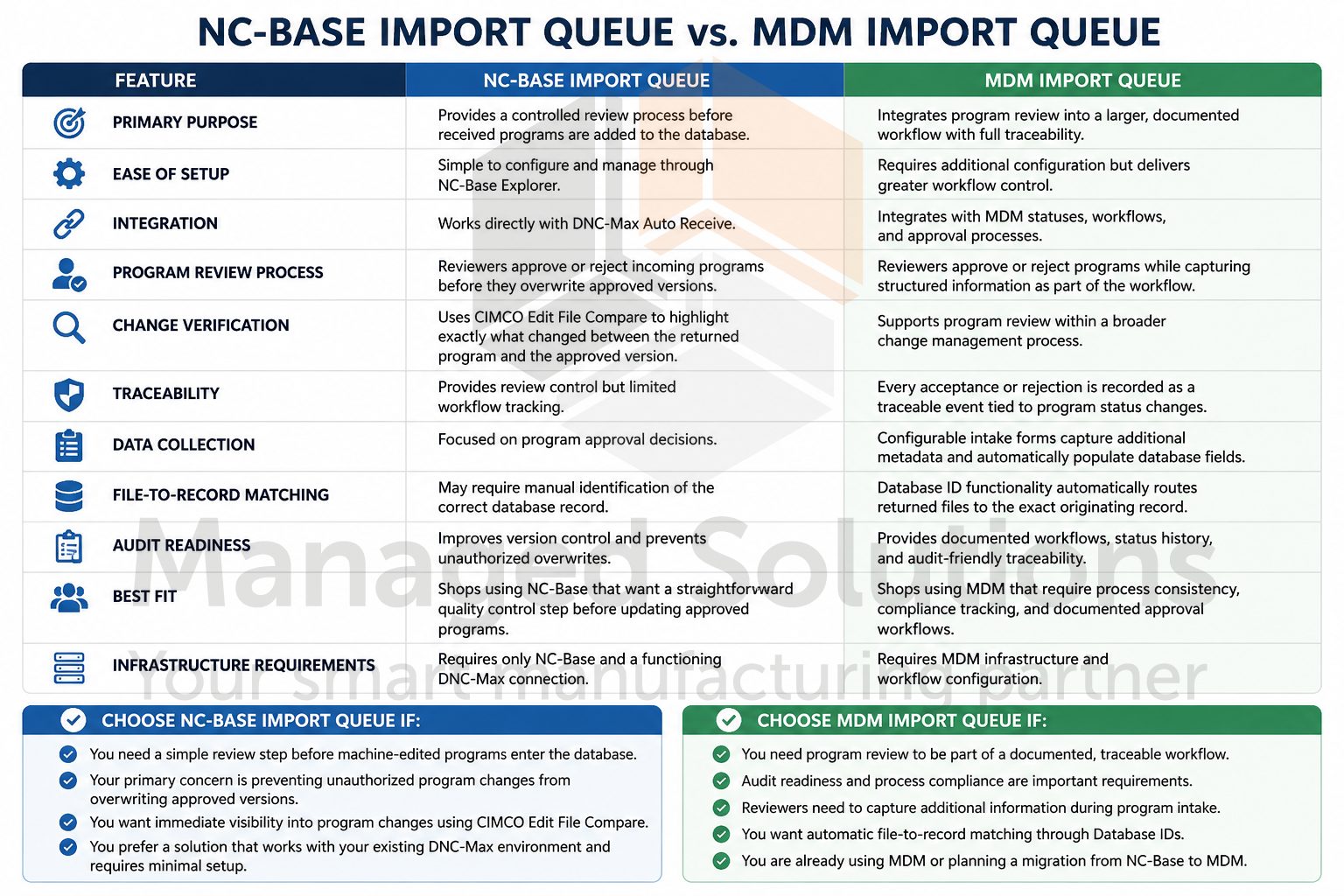
Side-by-Side: Key Differences
The NC-Base Import Queue is the right tool for shops that need a clear, controlled review step before received programs enter the database.
It is straightforward to configure, works directly through the NC-Base Explorer interface, and integrates cleanly with DNC-Max’s auto receive workflow.
The comparison function backed by CIMCO Edit’s File Compare is the feature most shops find immediately valuable: seeing exactly what changed between what came back from the machine and what was previously approved is a meaningful quality control step which does not require any additional tooling.
The MDM Import Queue is the right tool for shops that need the review step to be part of a larger, documented workflow.
The integration with MDM’s status system means every acceptance and rejection is a traceable event which moves a program through a defined set of states.
The configurable intake dialog means the reviewer is not just deciding yes or no, they are providing structured information that populates the database record.
The Database ID mechanism closes a gap that NC-Base cannot address automatically routing a returning file to the exact record it came from without manual intervention.
If your shop is running NC-Base today and the primary concern is preventing unauthorized program changes from silently overwriting approved versions, the Import Queue in NC-Base is exactly the right tool. And it does not require any additional infrastructure beyond a working DNC-Max connection.
If your shop is running MDM or considering a move to MDM from NC-Base, the Import Queue is one of the features where the additional configuration investment pays off most clearly in audit readiness and process consistency.
A Note on Configuration
Neither Import Queue configures itself.
In NC-Base, the queue only activates for programs received through DNC-Max’s Auto Receive or Auto Import features, not for manually received files, so CIMCO DNC-Max needs to be configured at the port level to use those modes.
In MDM, the status settings, intake dialog configuration, and Database ID options are all set per NC level per machine group which means there is planning required upfront to ensure the queue behaves consistently across all machines.
Both implementations reward investment in initial configuration.
A well-configured Import Queue, in either product, turns an uncontrolled receive workflow into a documented, defensible review process. That outcome is worth setting up correctly from the start.
Just Ask Us
If you have questions about how to configure the Import Queue for your specific NC-Base or MDM installation, or you want to better understand how the two products differ in the context of your current setup, contact us. Our team is ready to help you.
