Understanding the Import Queue in CIMCO NC-Base and CIMCO MDM
If you have ever had a machinist edit a program at the machine control and send it back without anyone in the programming department knowing
Your Smart Manufacturing Partner
Joe’s TLDR Summary
CIMCO DNC-Max is a server-based DNC communications platform which reliably connects every machine on the floor to your data systems via RS-232, Ethernet, FTP, and more, with transfer logging, remote request, auto receive, and integration with NC-Base, MDM, and MDC-Max.
If you have ever walked a USB drive from a PC to a machine, emailed a program to the floor, or had a machinist run an old version because the right one was hard to find, you already understand the problem DNC-Max solves.
Getting NC programs to CNC machines reliably, quickly, and without confusion about which version is current is not a glamorous problem, but it is a foundational one. Get it wrong and everything downstream suffers.
CIMCO DNC-Max is a professional, server-based DNC solution that has been handling this problem since 1991, when CIMCO built the first version to send programs simultaneously to 30 CNC machines for a single customer.
The origin story matters because it shaped what the product became, not a simple file transfer tool, but a full communications platform that connects your CNC machines to your data systems, your operators to your programs, and your shop floor to your business.
Over 100,000 CIMCO licenses have been sold worldwide, and DNC-Max has been at the center of most of those installations.
Let’s get into what it actually does.
DNC-Max is a client-server application.
The server runs as a Windows service in the background, managing all communication with your CNC machines. The client provides an interface for operators and administrators to monitor transfers, send and receive programs, configure ports, and control the system. Multiple clients can connect to the same server simultaneously, and a single client can control multiple servers, which is how shops with several buildings or departments manage everything from one screen.
Every machine connection in DNC-Max is a port.
Each port has its own independent configuration: communication protocol, serial parameters, directory assignments, transfer behavior, auto receive rules, remote request settings, messaging triggers, and integration settings. A shop with 40 machines has 40 ports, each configured for that specific machine’s requirements. Even if you are adding machines or removing them, the rest of the system keeps running without interruption.
The server runs 24 hours a day, 7 days a week as a Windows service.
It starts automatically on boot, runs in the background without needing anyone logged in, and handles transfers unattended. The tray icon shows current activity at a glance, and the server log captures everything that happens on every port so there is always a record of what was sent, what was received, when it happened, and whether it succeeded.
This is where DNC-Max earns its reputation as the universal DNC solution. The list of supported protocols is comprehensive enough to cover almost any machine on a shop floor, regardless of age or origin.
For RS-232 serial connections, DNC-Max supports the Standard Serial Protocol with full handshaking options (XOn/XOff, CTS/RTS, DTR/DSR), configurable baud rates from 110 to 115,200, and per-port parameter settings that match exactly what any given control requires. Heidenhain controls get their own dedicated protocol configuration with LSV2 support. Mazak machines, including SmoothEZ and SmoothC variants, have a dedicated Mazak protocol that handles both Mazatrol and ISO transfers. Siemens controls, Fanuc serial, and dozens of other control types are covered through the Standard serial protocol with control-specific tuning.
For Ethernet-connected machines, DNC-Max supports FTP Server mode, where the machine acts as an FTP client and pulls or pushes programs through a configured DNC-Max FTP port. IP addresses are locked to the specific machine so only the authorized control can connect to that port. This is the connection method for most modern Fanuc and Siemens Ethernet-capable controls. DNC-Max also supports authenticated connections to machine shared folders like Haas local share option.
The result is that a shop with a 1992 Fanuc 10M on RS-232 and a 2024 Fanuc 31i on Ethernet can run both through the same DNC-Max server with consistent management, logging, and integration. The legacy machine is not a second-class citizen, and it does not require a separate system.
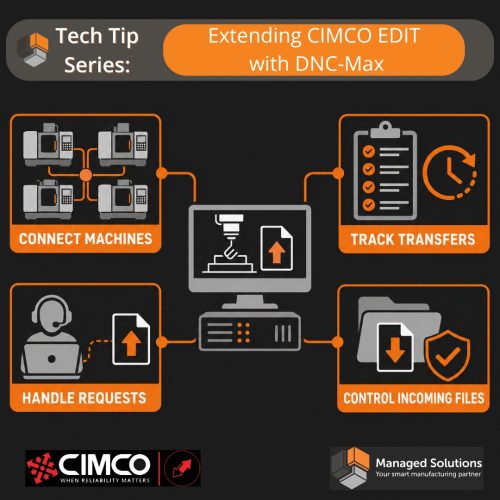
Remote request is the feature which changes the operator experience at the machine from reactive to self-sufficient. Instead of waiting for someone in the office to send a program, the operator at the control sends a short request, typically a small program with a specific O-number, and DNC-Max responds by automatically sending back the requested program file.
The configuration is flexible enough to match how each control works. The request can be a specific O-number, a filename embedded in a comment, or a string extracted by a trigger pattern. DNC-Max extracts the identifier, looks it up in the configured directory or NC-base, and transmits the correct file back to the machine without any manual intervention.
The directory listing feature extends this further. An operator can request a list of available programs from the machine control, and DNC-Max sends back a formatted directory listing showing program names, dates, and any other configured file information. The operator selects from the list and requests the file, all from the control panel without ever involving a PC.
Real-world situation: a shop running a cell of four Fanuc VMCs had operators phoning the programming department every time a new job came up on a machine because they did not know which version of the program number to run. After remote request was configured with an approved program directory, operators could call up the available program directly from the control, know it is the right one, and have it loaded in under 30 seconds. Phone calls to the programming department dropped to near zero for routine transfers.
When a program is modified at the machine control, getting that modified version back to the server correctly and consistently is where shops without proper DNC often have problems. Someone manually initiates a receive, the file goes somewhere on a shared drive with a slightly different name, and now there are two versions that nobody has clearly reconciled.
Auto receive in DNC-Max handles this automatically. When a machine starts transmitting, DNC-Max is already listening. The received file is named using the program number extracted from the data, saved to the configured directory, and optionally pushed directly into NC-Base (or MDM) as a new version for review. No manual receive operation required, no ambiguity about where the file went, no separate step to get it into the program management system.
The file naming rules are configurable per port. A specific prefix can be added, the extension can be set, and the save directory can be dynamically assigned based on the program number, the date, the machine name, or any combination of environment variables. A shop that needs received programs to land in a specific folder structure can define exactly that without any custom scripting.
Most shops use DNC-Max for years without ever enabling the log export feature, which is a missed opportunity. Every transfer event in DNC-Max, every send, every receive, every error, every operator message, generates a log entry. The log export module writes those entries to Excel, Access, or any ODBC-compatible database in real time, and that transfer history is genuinely useful data.
Here is how to set it up. In the DNC-Max Server Configuration, go to the Log export section. Check Enable log exporting. Select your log storage destination: Excel for a simple setup, or an ODBC data source if you want to feed a SQL Server database or connect to an existing reporting system.
The log format dialog lets you define exactly what goes into each column. The most useful columns for a basic transfer history are $DATETIME for the timestamp, $PORTNAME for the machine, $INFOTAG for the event type (send start, send end, receive start, receive end, error), and $MSGTEXT for any associated file name or message content. Configure those four columns and you have a complete record of every program transfer across every machine.
For shops that want separate log files per machine, the log database filename field supports environment variables. Setting the filename to $PORTNAME-$DATEYEAR-$DATEMONTHNO creates a separate monthly Excel file for each machine automatically, named by the machine and the month. No manual file management, no single log that becomes unwieldy over time.
PRO TIP FROM THE SHOP FLOOR:
The log export runs continuously but only captures events that happen after it is enabled.
Enable it before you need the history, not after an incident when you wish you had it.
The first thing most shops want to know when something goes wrong on the floor is what program was last sent to that machine and when.
With log export running, that answer is a two-second lookup. Without it, it is a memory exercise.
Set it up during the initial configuration and leave it running.
DNC-Max has a messaging system that can read data out of NC programs and DPRNT outputs from machine controls and use that data to trigger events, log information, and pass values directly to MDC-Max. This is the feature that makes DNC-Max more than a file transfer system. It is the bridge that connects program execution events at the machine to your data collection layer.
The mechanism works through configured message triggers. A message event is defined with a trigger string or a reserved program number. When a received file or DPRNT output contains that trigger, DNC-Max extracts the associated values using configurable patterns, logs the event with its extracted data, and can pass up to 16 extracted values to MDC-Max as message variables. Those variables then become available in MDC-Max expressions, timers, counters, and Real-time DB Tables.
A practical example: a Fanuc machine with DPRNT capability can output a DPRNT block at the end of each part containing the part number, the cycle time read from a macro variable, and the operator ID. DNC-Max receives that DPRNT output, extracts the three values using trigger patterns, and writes them to MDC-Max as a PARTCOMPLETE message with the extracted data attached. MDC-Max logs the part completion, increments the part counter, and closes a job record in the Real-time DB Table, all automatically, from data that was already embedded in the NC program.
This is the architecture that makes a connected shop floor possible without requiring every machine to have a native MTConnect or FOCAS interface. Legacy machines with DPRNT capability can participate in data collection through DNC-Max just as meaningfully as modern machines with direct network interfaces.
The DNC-Max web client allows authorized users to monitor port status and initiate transfers from any device with a browser. Operators on the floor can use a tablet or phone to check which programs are queued, supervisors can monitor transfer activity from their office, and remote administrators can check server status without opening a VPN and a Remote Desktop session.
The web client runs through the DNC-Max server’s built-in web server and is enabled with a single checkbox in the Web Clients configuration dialog. Access is controlled by the same user group permissions as the PC client, so operators only see what they are authorized to see and do only what they are authorized to do.
DNC-Max has a complete access control system with separate password tiers for administrators and users. Administrators can change server and port configurations. Users can control transmissions. Each tier can be password-protected independently. The inactivity timeout automatically locks the console after a configurable period, and every action in the system is logged to the server log with the associated user.
The manual is clear that the inactivity timeout and administrator password should always be enabled in a production environment, and that recommendation comes from real experience. An unlocked DNC-Max console on a shop floor PC is an invitation for accidental configuration changes that can be time-consuming to diagnose and reverse.
CIMCO DNC-Max was built for the shop floor, but it has grown into something larger than a DNC system. It is the communication layer that connects every machine on the floor to every system in the building, from NC-Base and MDM for program management, to MDC-Max for machine data collection, to ERP and MES systems through ODBC log export and workflow integrations.
We wrote about this in detail in our two-part series on CIMCO as Industry 4.0 middleware. CIMCO Software as Industry 4.0 Middleware covers the architectural picture. CIMCO DNC-Max’s Role as Industry 4.0 Middleware goes into the specific capabilities that make DNC-Max the center of that stack. Both are worth reading if you are thinking about DNC-Max as part of a broader digital manufacturing initiative rather than just a replacement for a USB drive workflow.
The fact that DNC-Max can communicate with a 1985 Cincinnati Milacron on RS-232 and a 2026 Fanuc Ethernet machine on the same server, with the same management interface, and feed both into the same data collection and program management system, is exactly why shops with mixed machine ages choose it. It meets every machine where that machine is, without requiring a hardware upgrade or a control replacement to participate in the connected shop.
RELIABLE CNC COMMUNICATION
CIMCO DNC-Max provides a centralized platform for managing communications between CNC machines and your manufacturing systems. Whether your shop floor includes legacy equipment or the latest controls, DNC-Max ensures reliable, uninterrupted program transfers across your entire operation.
Automated Program Delivery
DNC-Max allows operators to request and receive approved CNC programs directly from the machine control, eliminating unnecessary delays and manual intervention. By automating program delivery, shops can reduce downtime, improve efficiency, and ensure the correct version is always loaded at the machine.
Automatic Program Collection & Tracking
Every program transfer is automatically captured, stored, and logged, creating a complete history of shop floor activity. This helps manufacturers maintain program integrity, simplify troubleshooting, and improve traceability across all CNC operations.
Industry 4.0 Connectivity
More than a DNC solution, DNC-Max serves as a communication bridge between machines, program management, data collection, and business systems. By connecting shop floor equipment to your digital manufacturing ecosystem, DNC-Max helps support smarter decisions and a more connected operation.
CIMCO DNC-Max is available for a free 30-day evaluation. If you want to walk through what a DNC-Max installation looks like for your specific machine mix, understand the hardware requirements for your RS-232 connections, or see how DNC-Max integrates with NC-Base or MDC-Max in your environment, contact us. We have been implementing DNC-Max installations since 2006 and we know every protocol, every quirk, and every configuration pattern that makes these installations work reliably from day one.
Your shop floor is already generating data. DNC-Max is how you take control of it.
Start your free 30-day Demo of CIMCO products today.

If you have ever had a machinist edit a program at the machine control and send it back without anyone in the programming department knowing

In today’s manufacturing environment, efficiency on the shop floor often comes down to how well your machines communicate. Moving CNC programs quickly, reliably, and securely

CIMCO DNC-Max is a mature and incredibly stable platform. Unfortunately in the Windows operating environment there are many factors that can impact the service. When