Joe Hackman, Founder & CEO

Joe’s TLDR Summary

CIMCO CNC-Calc adds integrated 2D CAD/CAM functionality directly to CIMCO Edit, allowing users to quickly create geometry, generate toolpaths, and produce NC programs without leaving the editor. It’s an ideal solution for operators, toolmakers, and programmers who need a fast, efficient way to handle everyday 2D machining tasks without the complexity of a full CAM system.

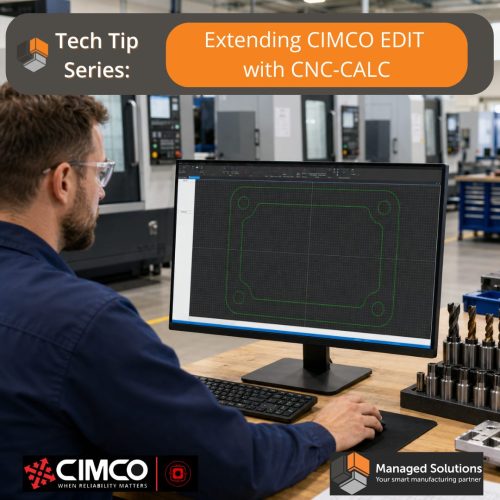
CIMCO CNC-Calc: The CAD/CAM That Lives Inside Your Editor

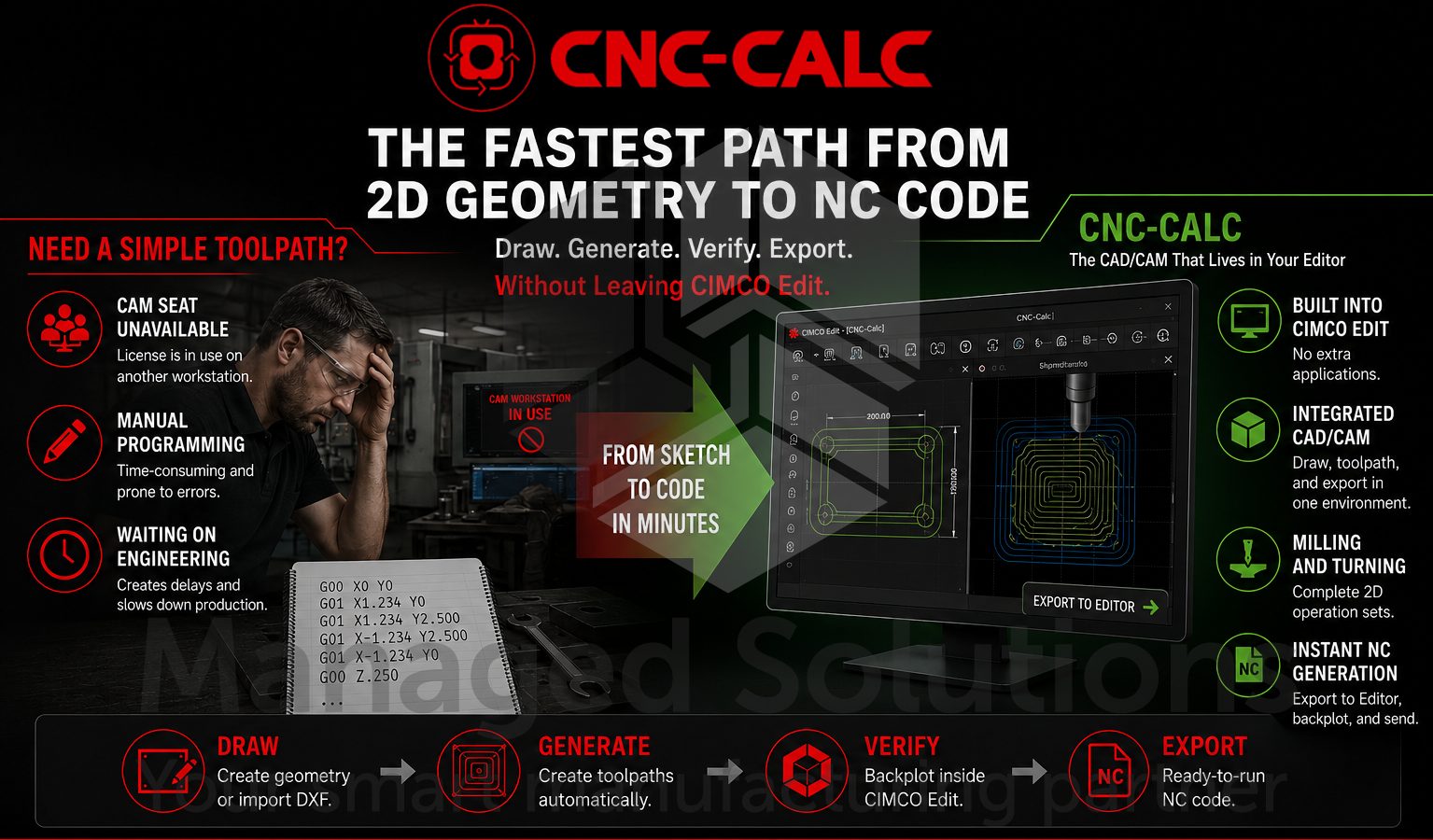
Here is a scenario that plays out in shops every day. A machinist needs to mill a simple pocket. It is not complicated geometry, nothing that would take more than five minutes to program if you could just draw it and click generate. But the shop’s CAM seat is tied up on a workstation across the room, someone else is using it for a real job, and the license does not float. So, the machinist either waits, hand-codes it, or bothers the programmer.

CIMCO CNC-Calc is an add-on for CIMCO Edit which eliminates that scenario.

It is a fully integrated 2D CAD and CAM environment that lives inside a tab in the editor, runs on any machine that has CIMCO Edit installed, and goes from blank drawing to verified NC code without opening a second application.

No separate seat, no separate license server, no switching windows. Draw the geometry, define the operation, click Export to Editor, and the code drops directly into a new program window ready to backplot and send.

It is not a replacement for a full CAM system on complex 3D work. It is not trying to be.

What it is, is the fastest path from a 2D geometry problem to working NC code for the operators, toolmakers, and setup programmers who need that every single day and currently do not have a good tool for it.

What CNC-Calc Actually Does

CNC-Calc adds a dedicated tab to CIMCO Edit with three distinct functional areas:

  • Geometry Construction
  • Operation Definition
  • Code Generation

All three live in the same environment and work together without any import or export step between them.

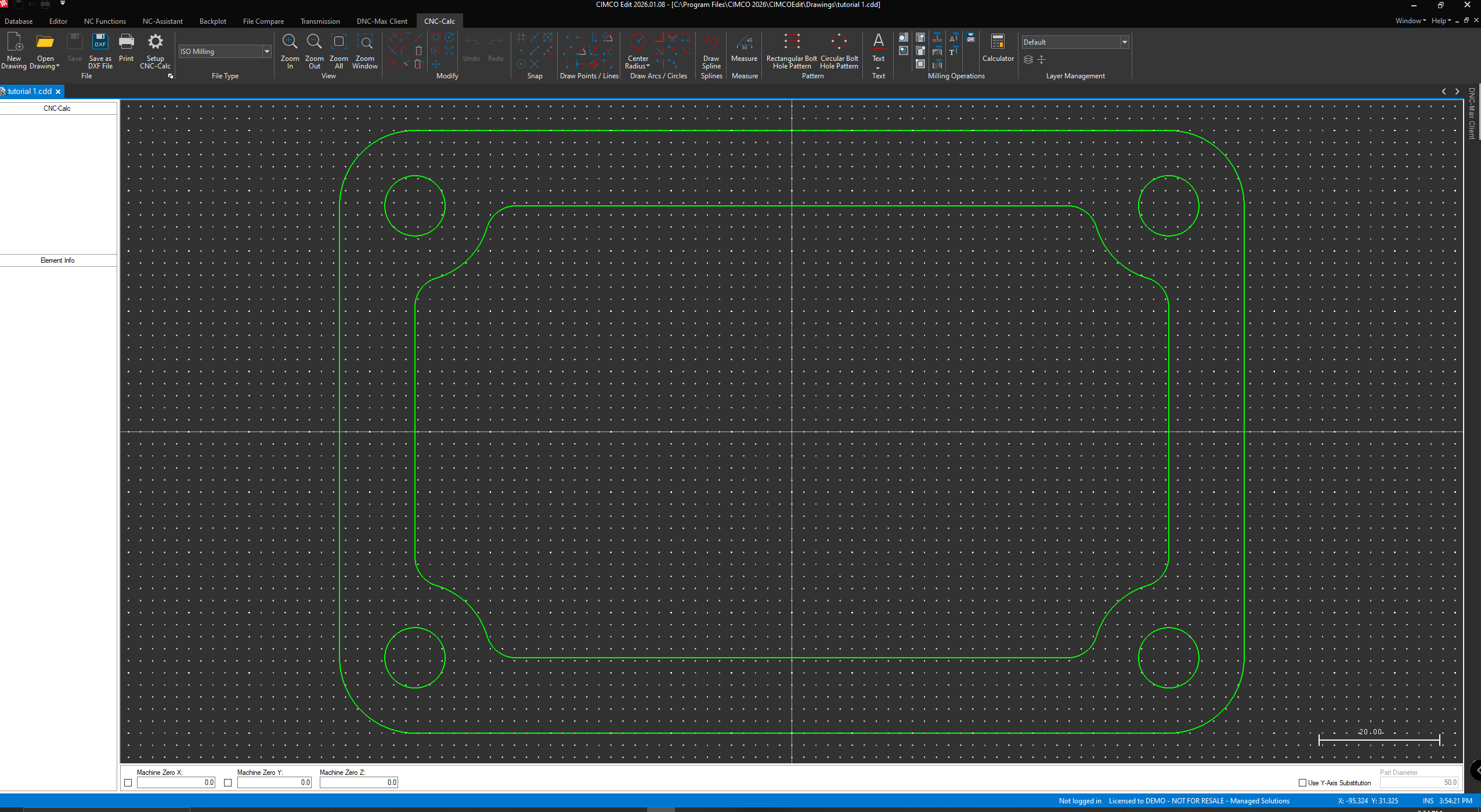
On the geometry side, CNC-Calc gives you a complete 2D drafting toolkit. Points and lines in every configuration; horizontal, vertical, polar, perpendicular, parallel, bisector, tangent to two elements, tangent through a point. Arcs and circles defined by center and radius, three points, tangent to elements, or any combination. Rectangles with corner radii. Splines. Text in both simple stroke and TrueType fonts. A full set of modification tools. Trim, fillet, chamfer, break, join, offset, mirror, translate, rotate, scale, and remove duplicates. Snap modes for grid, points, centers, midpoints, endpoints, and intersections.

DXF import means existing geometry from a CAD system does not need to be redrawn. Open a DXF file directly in CNC-Calc and the geometry is immediately available as the basis for toolpaths.

On the operation side, the milling operation set covers face milling, pocket milling, contour milling, constant cut inside-out, constant cut outside-in, drilling, helix drilling, thread milling, and letter milling for both simple and TrueType fonts.

The turning operation set covers roughing, facing, finishing, grooving, end drilling, threading, cutoff, and constant cut turning.

Each operation has a full parameter dialog covering depths, stepovers, lead-in and lead-out, cutting method, stock to leave, roughing and finishing passes, retract height, and everything else needed to define a complete machining operation without guessing.

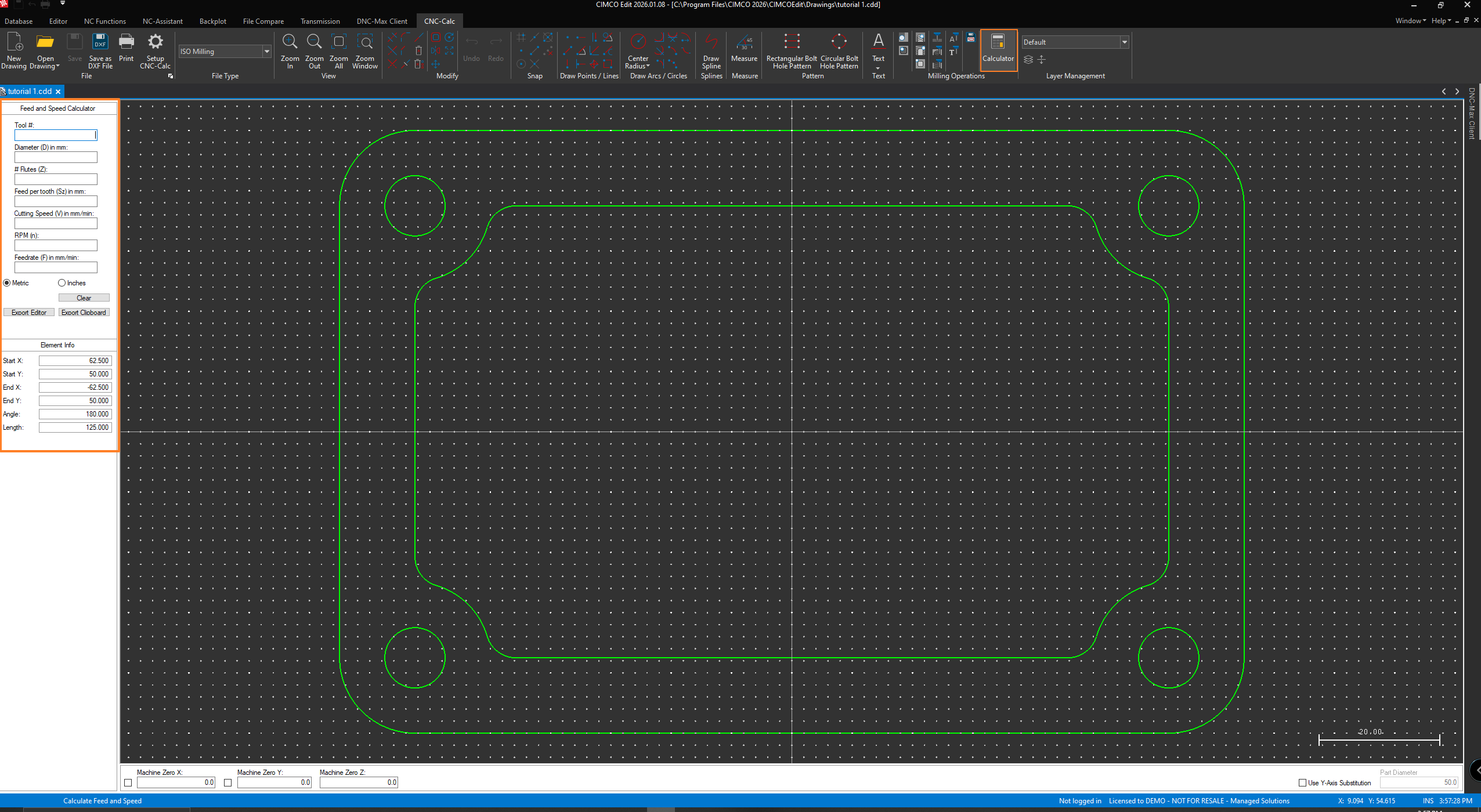
The feed and speed calculator is built directly into both the milling and turning operation sets. Enter the tool data and material, and CNC-Calc calculates the recommended feed and spindle speed and generates the tool change block. The calculated data goes directly into the exported NC code alongside the toolpath.

The Workflow in Practice

The workflow from blank screen to NC code is straightforward enough that an operator with no CAD experience can work through it after a single session. The tutorials in the manual walk through the full process, from geometry construction to verified NC code, and the pattern is consistent across every operation type.

Draw or import geometry. Select the operation from the Milling Operations or Turning Operations menu. Define the parameters in the operation dialog. Click Show Toolpath to preview the result on screen. Adjust parameters if needed. Click Export to Editor and the NC code opens in a new tab in CIMCO Edit, where it can be backplotted immediately using the editor’s solid simulation engine, edited if needed, and sent to the machine through whatever transfer method is configured.

The geometry file and the NC code are separate. The geometry stays in CNC-Calc as a reusable drawing. If a parameter needs to change, open the drawing, adjust the operation, and re-export. The new code reflects the change without redrawing anything.

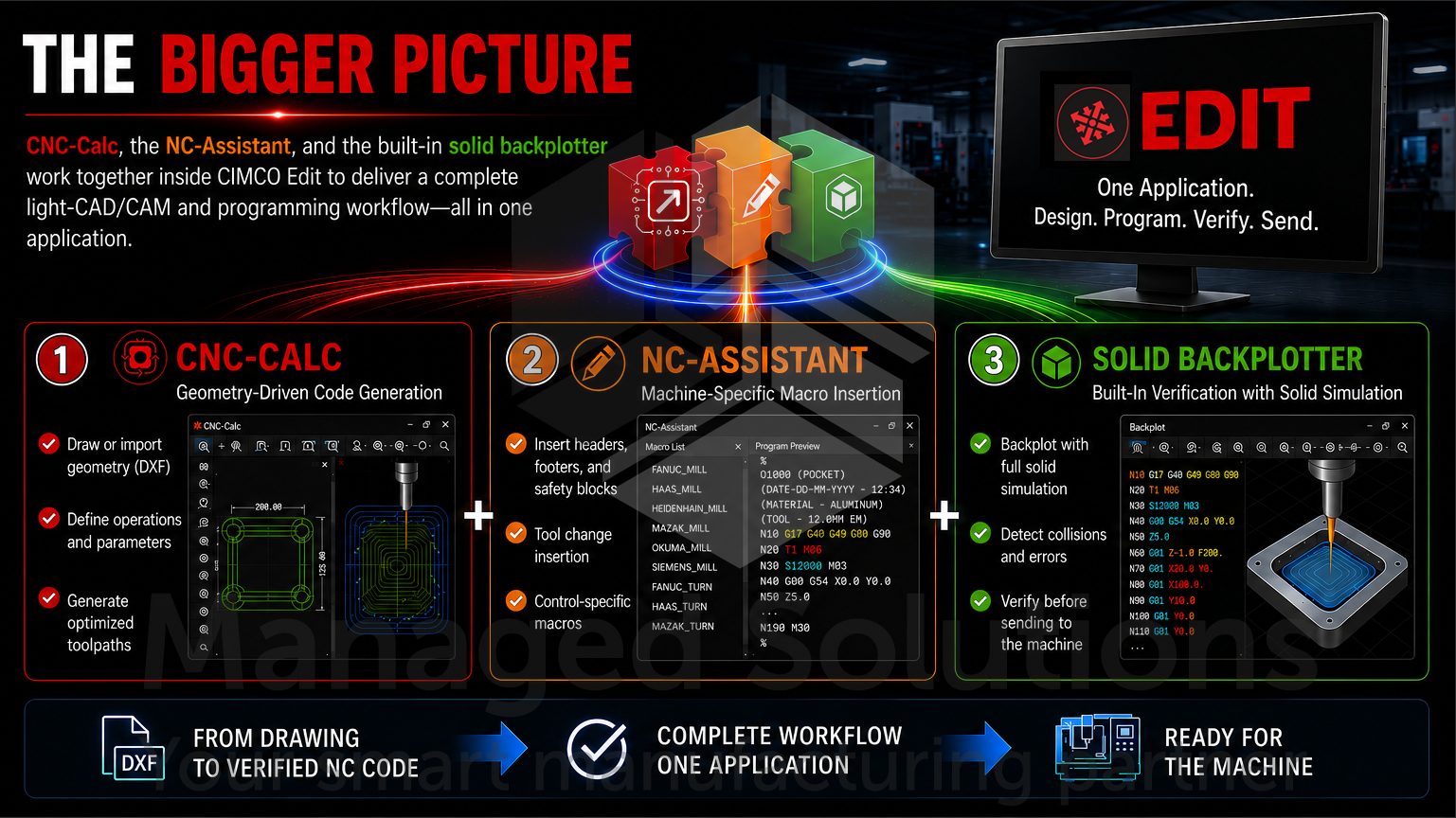
One practical note from the manual worth flagging is that the exported NC code from CNC-Calc does not include program start or end codes and does not include tool change codes or spindle speed codes by default. Those are meant to be inserted using CIMCO Edit’s NC-Assistant macros, which is exactly the right division of labor. CNC-Calc generates a geometry-driven toolpath. The NC-Assistant macro inserts the machine-specific header, tool change, and footer blocks that vary by control. Together, they produce a complete, correct, ready-to-run program.

Tech Tip: Save Your Operation Parameters as Defaults

One of the most useful habits to build in CNC-Calc is saving operation parameters once you have dialed them in for a specific machine and material combination.

Every operation parameter dialog has settings that rarely change for a given setup. Retract height, cutting method, number of decimal places in the output, radius versus diameter output for turning, and spline substitution tolerance. Setting these once and saving them as defaults means the next time the operation is needed, the dialog opens with correct values already populated rather than defaults which need to be manually overridden every time.

The configuration is machine-type specific, which is the key detail.

Go to File > Setup CIMCO CNC-Calc and select the correct machine type before making any changes to the configuration. All settings in that dialog apply only to the selected machine type.

A shop running a Fanuc VMC and a Heidenhain mill can have separate configurations for each, with the correct output format, post processor, and default parameters stored independently for each machine type.

Switching between machine types is selecting from the File Type dropdown in the Operations toolbar before defining an operation.

Read our article, How to Load and Reload Common Parameters in CIMCO CNC-Calc, which covers this workflow in detail. If you are setting up CNC-Calc for the first time or configuring it for a new machine, this article is the right place to start.

Kevin Payne, CNC Automation Specialist

PRO TIP FROM THE SHOP FLOOR:

CNC-Calc is included in the CIMCO Edit demo mode and runs fully functional for the 30-day evaluation period.

If you have CIMCO Edit installed across multiple workstations already, CNC-Calc is available on every one of those machines right now in demo mode without any additional installation.

That is worth knowing if you want to evaluate it in a real workflow before committing to a license.

Put it in front of the operators and toolmakers who would use it most and let them work through a few real jobs with it.

The feedback from that kind of evaluation is more useful than any benchmark.

The Post Processor: Configured for Your Control

CNC-Calc’s output is driven by a post processor that formats the NC code for a specific machine and control type.

The most commonly used formats are ISO G-code and Heidenhain conversational, but the post processor is user-configurable and CIMCO provides documentation for making common modifications.

If a control requires a specific arc output format, a particular block numbering scheme, or a non-standard canned cycle syntax, those changes can be made to the post processor without a new installation or a software update.

If post processor modifications are needed beyond what the documentation covers, CIMCO supports that directly. The manual explicitly states you can contact CIMCO at info@cimco.com with the requirement and they will assist. For shops with unusual control configurations, this support path matters.

Who Gets the Most Value from CNC-Calc

The manual’s description of the target user is accurate and worth repeating. CNC-Calc is built for operators and toolmakers who are not trained in advanced CAD/CAM systems, and for small companies looking for a first step into the CAD/CAM world. This is who truly benefits most from it, but the practical use case extends beyond that.

Programmers running full CAM seats use CNC-Calc regularly for tasks which are faster to sketch and generate in CNC-Calc than to set up a full CAM operation for. For instance, a quick pocket on a fixture plate, letter engraving on a part, a simple facing pass, or a drilling pattern on a fixture.

When the CAM system requires loading a model, setting up stock, defining machine parameters, and postprocessing for a five-minute job, CNC-Calc wins on turnaround time. It is the quick-and-correct path for 2D work which does not justify full CAM overhead.

The fact it runs inside CIMCO Edit also means it is available wherever CIMCO Edit is installed, including on the shop floor. An operator who spots a geometry problem at the machine can make the correction, regenerate the affected operation, and have corrected code ready without leaving the editor.

The Bigger Picture

CNC-Calc is one of several add-ons that extend CIMCO Edit beyond its core editing and simulation capabilities.

If your shop is evaluating the full CIMCO Edit ecosystem, the combination of CNC-Calc for geometry-driven code generation, the NC-Assistant for machine-specific macro insertion, and the built-in solid backplotter for verification is a complete light-CAD/CAM and programming workflow that lives entirely inside one application.

For shops which grow beyond what CNC-Calc handles, the upgrade path leads to full CAM systems which integrate with CIMCO Edit and CIMCO MDM.

Our article on CIMCO Software as Industry 4.0 Middleware describes how the full CIMCO stack fits together. While our CIMCO Edit product page covers the complete set of add-ons available alongside CNC-Calc.

KEY HIGHLIGHTS

2D CAD & CAM

  • Integrated 2D CAD and CAM environment
  • Create geometry and generate NC code
  • No separate CAD/CAM software required
  • Runs directly inside CIMCO Edit

Create 2D geometry and generate NC programs without leaving CIMCO Edit. CNC-Calc combines CAD and CAM in one integrated workspace, eliminating the need for separate software for everyday programming tasks.

FAST NC Program CREATION

  • Draw or import DXF geometry
  • Generate milling and turning toolpaths
  • Export code directly to the editor
  • Ideal for quick programming tasks

Go from sketch to machine-ready NC code in just a few clicks. Import DXF files or draw directly in CNC-Calc, generate toolpaths, and export code straight into CIMCO Edit for verification and editing.

BUILT-IN MACHINING TOOLS

  • Feed & speed calculator included
  • Extensive milling and turning operations
  • Toolpath preview before posting
  • Configurable post processors

Produce accurate toolpaths with built-in milling, turning, drilling, and engraving operations. Integrated feed and speed calculations, toolpath previews, and configurable post processors help deliver reliable results for your CNC machines.

Shop Floor PRODUCTIVITY

  • Available on every CIMCO Edit workstation
  • Reusable drawings and operations
  • Perfect for operators and toolmakers
  • Reduce programming delays and CAM bottlenecks

Give operators, toolmakers, and programmers the ability to create and modify programs without waiting for an available CAM workstation. Reusable geometry, saved machining parameters, and direct integration with CIMCO Edit help keep production moving efficiently.

Ready to Get Started?

CIMCO CNC-Calc is available as an add-on license for CIMCO Edit and is included in the CIMCO Edit 30-day demo.

The fastest path from a 2D geometry problem to working NC code. That is CNC-Calc.

We have been selling and supporting CNC-Calc since 2006 and know exactly where it delivers value and when a different tool might be the better answer.

If you want to talk through how it might fit your specific shop workflow, understand how it complements or replaces part of your current processes, or get it configured correctly for your machine types and control formats, please contact us.

Start your free 30-day Demo of CIMCO products today.

Other CIMCO CNC-CALC Resources